
Getting started
Introduction
Quarters is a small, focused home for terminal coding agents (Claude Code, Codex, Gemini CLI, Antigravity, OpenCode, GitHub Copilot CLI, Devin, Aider, Amp, Goose, Qwen Code and Cursor CLI), for developers who work on many projects at once.
If you use a coding agent on more than one project, you know the routine: a terminal window per project, cd into each one, start the agent, start the backend, start the frontend, then remember which window was waiting for you. Quarters takes that routine away:
- Switch projects instantly. Every project is a click (or ⌘P) away, and its agent sessions keep running while you're elsewhere.
- Work on several projects at the same time, and see which one finished and is waiting for you.
- See what's going on at a glance: git, servers and automations for every agent; for Claude Code also model, context, tokens, plan usage, the files it changed, MCP servers and skills.
- Start the rest of your stack in one go with automations: backend, frontend, scripts and watchers in their own terminals.
- Work from anywhere: leave it running on your machine at home and use it from a laptop, tablet or phone.
Claude Code is the default; each project can run a different agent (see Coding agents). It is built for developers and their coding agents, and nothing else: no AI of its own, no accounts, no cloud services. It runs as a Mac app, or as a server on Linux or Windows (through WSL) that you use from a browser.
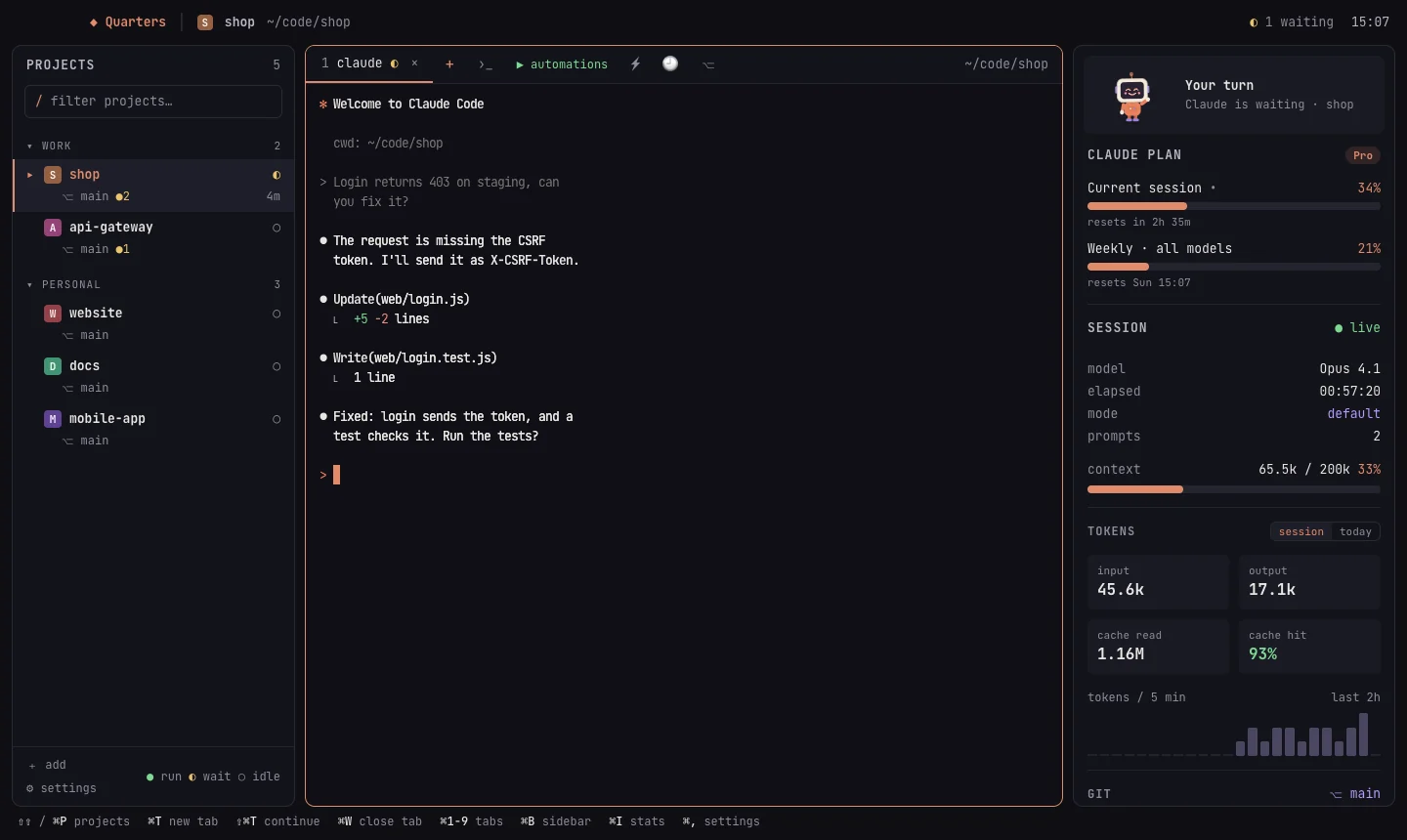
Quarters is an independent open-source project (MIT). It is not made by, affiliated with or endorsed by Anthropic.
Install on a Mac
You need macOS 11 (Big Sur) or later, on Apple silicon or Intel, and a coding agent installed and signed in (see step 2 below).
With Homebrew (the quick way)
brew install --cask amithgc/tap/quartersThe app is signed with a Developer ID and notarized by Apple, so it opens like any other. brew update && brew upgrade --cask quarters updates it, and brew uninstall --cask quarters removes it (add --zap to remove its settings too). Without Homebrew, download Quarters-x.y.z.zip from the latest release, unzip it and move Quarters.app to Applications.
Then continue with Your first session.
Or build it from source
This takes about ten minutes the first time.
1. The developer tools
Open Terminal and install Apple's command-line tools (a compiler and git). Skip this if git --version already works.
xcode-select --installThen Homebrew, if you don't have it, and with it Go and Node.js:
/bin/bash -c "$(curl -fsSL https://raw.githubusercontent.com/Homebrew/install/HEAD/install.sh)"
brew install go node
Quarters needs Go 1.26 or later and Node.js 20 or later. Check with go version and node --version.
2. A coding agent
Install Claude Code as described in its documentation, then run it once and sign in:
claude # then type /login and follow the steps, then /exitQuarters starts the agent for you, so it has to work in a normal terminal first. Using another agent instead, or as well? Install and sign in to it the same way (see Coding agents).
3. The Wails build tool
go install github.com/wailsapp/wails/v2/cmd/wails@v2.17.0This puts wails in ~/go/bin; the Makefile finds it there.
4. Build and install Quarters
git clone https://github.com/amithgc/quarters
cd quarters
make install
This builds Quarters.app and copies it to /Applications. On an Intel Mac, build with wails build -platform darwin/amd64 and copy build/bin/Quarters.app to Applications yourself.
5. Open it
- Open Quarters from Applications or Spotlight. The first time, macOS may say it can't check the app: right-click → Open, then Open again (or System Settings → Privacy & Security → Open Anyway).
- When macOS asks whether Quarters may access Documents, Desktop or a drive, allow it, or projects there stay empty.
- Allow notifications when asked, for the “your turn” alerts.
Continue with Your first session.
Install on Linux
The quick way: with Homebrew on Linux, brew install amithgc/tap/quarters-server; or download quarters-linux-amd64.tar.gz (or -arm64) from the latest release and put the quarters inside it on your PATH. Then install a coding agent (step 2) and go on from step 4.
On Linux, Quarters runs as a server with no window, and you use it from a browser: on the same machine, another computer, or your phone. These steps are for Ubuntu and Debian; other distributions need the same tools from their own package manager. Both x86_64 (amd64) and arm64 (a Raspberry Pi 4/5, an ARM server) work.
1. The tools to build it
sudo apt update
sudo apt install -y git make curl
Go 1.26 or later. Distribution packages are usually older, so use the official one (pick arm64 instead of amd64 on ARM):
curl -LO https://go.dev/dl/go1.26.3.linux-amd64.tar.gz
sudo rm -rf /usr/local/go && sudo tar -C /usr/local -xzf go1.26.3.linux-amd64.tar.gz
echo 'export PATH=$PATH:/usr/local/go/bin' >> ~/.bashrc && source ~/.bashrc
go version
Node.js 20 or later, through nvm:
curl -o- https://raw.githubusercontent.com/nvm-sh/nvm/v0.40.3/install.sh | bash
source ~/.bashrc
nvm install 22
Rather not install build tools on the server? Build on another machine (a Mac works: make server makes both Linux versions) and copy the file over with scp build/bin/quarters-linux-amd64 server:~/. Then skip to step 4.
2. Claude Code
Install Claude Code as described in its documentation and sign in once:
claude # /login shows a link: open it on any device, paste the code back, then /exit3. Build Quarters
git clone https://github.com/amithgc/quarters
cd quarters
make server
This makes build/bin/quarters-linux-amd64 and quarters-linux-arm64. Install the one for your machine:
sudo install build/bin/quarters-linux-amd64 /usr/local/bin/quarters # or -arm644. Set a username and password
quarters --set-password yournameIt asks for the password (at least 10 characters; typing is hidden). This is how browsers sign in.
5. Choose how you'll reach it
- On this machine
- Nothing to set: it listens on
http://localhost:8421. - Home network
- Phones and computers on the same Wi-Fi or LAN. Edit
~/.config/quarters/config.json(it's created on the first start; create it if it isn't there yet) so it contains"remote": {"lan": true}. If a firewall is on, open the port:sudo ufw allow 8421/tcp. - From anywhere
- Put an HTTPS tunnel in front, such as Cloudflare Tunnel or Tailscale. See From anywhere.
6. Start it
quartersIt prints the addresses it's serving (including home-network ones) and a pairing link. Open an address in a browser, sign in, and add projects with + add.
7. Keep it running
To start it at boot and restart it if it stops, make a systemd user service:
mkdir -p ~/.config/systemd/user
cat > ~/.config/systemd/user/quarters.service <<'UNIT'
[Unit]
Description=Quarters

[Service]
ExecStart=/usr/local/bin/quarters
Restart=on-failure

[Install]
WantedBy=default.target
UNIT
systemctl --user enable --now quarters
loginctl enable-linger $USER    # keep it running when you're logged out
journalctl --user -u quarters -f   # its output, including the addresses
Manage devices and the password from the command line while it runs: see Command line.
Run it in Docker
The Linux server also runs in a container, on any machine with Docker: a home server, a NAS, a cloud box, or Docker Desktop on a Mac or PC. The docker/ folder in the repository has a Dockerfile and a compose.yaml. The image has the Quarters server (the released build), Claude Code, git and ripgrep, and runs as a normal user, because Claude Code won't skip its permission prompts as root. Your projects are in a folder you mount; settings, sign-ins and conversations are in a volume, so they survive updates. Both amd64 and arm64 work.
1. Get the files and make a code folder
git clone https://github.com/amithgc/quarters
cd quarters/docker
mkdir -p code        # your projects go here (or set CODE_DIR=/path/to/code)
2. Build it and set a username and password
docker compose build
docker compose run --rm quarters quarters --set-password yourname
It asks for the password (at least 10 characters). If your user id (id -u) isn't 1000, build with QUARTERS_UID=$(id -u) docker compose build so the files Quarters writes in code/ are yours.
3. Start it
docker compose up -d
docker compose logs     # the addresses it serves
Open http://localhost:8421, or http://<the machine's IP>:8421 from a phone or computer on the same network, and sign in. It answers plain HTTP from private addresses only (your network, Tailscale), never from the internet.
4. Sign Claude Code in, once
docker compose exec quarters claude # /login shows a link: open it anywhere, paste the code back, then /exit5. Add projects
In the browser, + add: folders in code/ are at /home/dev/code/… in the container. To clone one there: docker compose exec quarters git clone https://github.com/you/app code/app. Set your git name and email once (docker compose exec quarters git config --global user.name "You", and user.email), or mount your ~/.gitconfig; mount ~/.ssh to push over SSH. Both lines are in compose.yaml, commented out.
6. HTTPS and passkeys (optional)
Put a tunnel in front, pointed at http://localhost:8421 (cloudflared tunnel run --url http://localhost:8421 quarters, or tailscale serve --bg 8421), and set QUARTERS_URL in compose.yaml to its address before the first start. Already started? Add "url": "https://…" under "remote" in ~/.config/quarters/config.json (edit it in the browser: Settings → Edit config.json) and run docker compose restart. See From anywhere.
- Ports
- Keep both numbers in
"8421:8421"the same: the server checks the address it's reached at. - Changing the password
- Run the
--set-passwordline again, thendocker compose restart. - Other agents
- Install them in the image with a
RUNline in theDockerfile(Codex, Gemini CLI and others need Node.js first). - Updating
- Change
QUARTERS_VERSIONincompose.yaml, thendocker compose up -d --build. Claude Code updates itself.
On Windows
The same files run in Docker Desktop, with its WSL 2 backend (the default). In PowerShell:
git clone https://github.com/amithgc/quarters; cd quarters\docker
mkdir code
docker compose build
docker compose run --rm quarters quarters --set-password yourname
docker compose up -d
Then open http://localhost:8421 in Edge or Chrome, and carry on from step 4. The user id note in step 2 doesn't apply.
Keep your projects in the container's code folder (clone them there with docker compose exec, as in step 5) rather than pointing CODE_DIR at a folder on C:\: Windows folders mounted into a container work, but git and file watching are slow on them. Or skip Docker and run the server in WSL directly, below.
Install on Windows (WSL)
On Windows, Quarters runs inside WSL (Windows Subsystem for Linux), Microsoft's built-in Linux, and you use it in Edge or Chrome. Claude Code and your projects live in WSL too, which is how most people use Claude Code on Windows. You get everything the browser version has: projects, Claude and shell tabs, automations, past conversations and the side panel. You need Windows 10 (version 2004 or later) or Windows 11. Prefer a container? See Docker on Windows.
1. Install WSL and Ubuntu
Open PowerShell as administrator (Start → type PowerShell → Run as administrator) and run:
wsl --installRestart when asked. Ubuntu then opens and asks you to choose a Linux username and password. From now on, open Ubuntu from the Start menu (or Windows Terminal) for the steps below.
Keep your projects inside WSL, in your Linux home folder (~/code/…), not under /mnt/c: it is much faster, and Claude Code works best there. Windows can see them at \\wsl$\Ubuntu\home\yourname in File Explorer.
2. Claude Code, the build tools, and Quarters
Inside Ubuntu, follow the Linux guide, steps 1 to 4: the build tools, Claude Code (sign in with /login; the link opens in your Windows browser), make server, and quarters --set-password. WSL on a normal PC uses quarters-linux-amd64.
3. Start it and open it in your browser
quartersLeave that window open, and in Edge or Chrome on Windows, open http://localhost:8421. WSL passes localhost through to Windows, and browsers treat localhost as secure, so you can:
- Sign in with the username and password, or pair a passkey (Windows Hello): run
quarters --pairin another Ubuntu window and open the link it prints. - Install it as an app: in Edge, ⋯ → Apps → Install this site as an app; in Chrome, the install icon in the address bar. It then opens in its own window, from the Start menu.
If localhost:8421 doesn't open, turn on mirrored networking (below) and restart WSL with wsl --shutdown.
4. Phones and other computers (optional)
By default, WSL is only reachable from the PC itself. To use Quarters from your phone on the home network, on Windows 11 22H2 or later:
- Create
C:\Users\yourname\.wslconfigcontaining:[wsl2] networkingMode=mirrored - In PowerShell as administrator, let the port through the WSL firewall:
New-NetFirewallHyperVRule -Name Quarters -DisplayName "Quarters" -Direction Inbound -VMCreatorId '{40E0AC32-46A5-438A-A0B2-2B479E8F2E90}' -Protocol TCP -LocalPorts 8421 - Run
wsl --shutdown, open Ubuntu again, set"remote": {"lan": true}in~/.config/quarters/config.json, and startquarters. It prints the PC's home-network address, likehttp://192.168.1.20:8421; open that on the phone. If Windows Firewall asks, allow private networks.
From outside your home, use a tunnel as on Linux: see From anywhere.
5. Keep it running
The simplest way is to leave the Ubuntu window running quarters open. Recent WSL versions run systemd, so the Linux guide's service (step 7) also works; WSL itself starts when you open Ubuntu or Windows Terminal. Windows may sleep while Claude is working: set Settings → System → Power so the PC stays awake while you need it.
Updating and uninstalling
Updating
Installed with Homebrew: brew update && brew upgrade --cask quarters on a Mac, brew update && brew upgrade quarters-server on Linux. Built from source: in the folder you cloned, get the latest code and build again:
# Mac: rebuilds and replaces /Applications/Quarters.app
cd quarters && git pull
make install

# Linux and WSL (use -arm64 on ARM)
cd quarters && git pull
make server
sudo install build/bin/quarters-linux-amd64 /usr/local/bin/quarters
Restart Quarters afterwards (on Linux with the service: systemctl --user restart quarters). Your projects, settings and paired devices are kept.
Uninstalling
- Mac: quit Quarters and move it from Applications to the Trash.
- Linux and WSL:
systemctl --user disable --now quartersif you made the service, thensudo rm /usr/local/bin/quarters. - Settings, projects and paired devices live in
~/.config/quarters; delete that folder to remove them too. Your projects and Claude Code's own data are never touched.
Your first session
- Open Quarters. The first time, it lists the folders you used Claude Code in most recently. Add others with + add (⌘O).
- Click a project and press C. Its coding agent (Claude Code unless you chose another) starts in that folder. ⇧C continues your last conversation there, S opens a shell.
- Add an automation for your dev servers: right-click the project → + Add automation.
- Open Settings with ⌘, to switch features on or off.
- Want it on your phone? Projects → Remote Access… sets up remote use.
If your projects are in Documents, Desktop or on an external drive, macOS asks whether Quarters may access them. Allow it, or the project list stays empty.
Coding agents
Quarters runs a coding agent in each project's tabs. Claude Code is the default; the others are a setting away. Each must be installed and signed in, and work in a normal terminal.
Choosing one
- For every project: Settings → Coding agent → Harness.
- For one project: the side panel's Agent menu (pick one, then Apply), or ✎ on the project → Coding agent. “Default” follows Settings.
- Agents that aren't installed are marked not installed; starting one tells you where to get it.
- In config.json:
"harness"globally andprojects[].harnessper project.
What Quarters runs
| Agent | Starts | Continue (⇧C) | Skip permission prompts |
|---|---|---|---|
| Claude Code | claude | --continue | --dangerously-skip-permissions |
| Codex | codex | resume --last | --dangerously-bypass-approvals-and-sandbox |
| Gemini CLI | gemini | --resume latest | --yolo |
| Antigravity | agy | --continue | --dangerously-skip-permissions |
| OpenCode | opencode | --continue | none (set it in OpenCode's config) |
| GitHub Copilot CLI | copilot | --continue | --allow-all-tools |
| Devin | devin | --continue | --permission-mode bypass |
| Aider | aider | --restore-chat-history | --yes-always |
| Amp | amp | threads continue --last | --dangerously-allow-all |
| Goose | goose | session --resume | none (GOOSE_MODE=auto in Goose's config) |
| Qwen Code | qwen | --continue | --yolo |
| Cursor CLI | agent | --continue | --force |
What each one gets
- Every agent: tabs, “your turn” alerts, automations, worktrees, saved prompts, git and servers in the side panel, resuming after a restart, and remote access.
- Claude Code also gets everything that reads its own logs: session stats and tokens, plan usage, files it changed, tools, MCP servers and skills, past conversations, the chat view on phones, and Claude Remote Control. Resuming a past conversation always opens Claude Code.
- Antigravity shows its plan and each model's quota in the side panel, read from the Antigravity IDE while it's open on the same machine (its local, unofficial interface; nothing leaves the machine). With the IDE closed, the panel says so.
- Other agents run as they are: on phones and tablets their tabs are plain terminals, like shells.
Agent teams
Claude Code's agent teams run inside the tab: Quarters starts Claude Code with --settings '{"teammateMode":"in-process"}', so teammates work in the agent's own terminal (↓ from an empty prompt manages them), in the Mac app and in a browser alike. No tmux is needed. With "teammateMode": "tmux" in your Claude Code settings, teammates would otherwise open in tmux panes no Quarters window shows, or fail with “To use agent swarms, install tmux”. A --settings of your own in the project's command is left alone.
Tabs also don't inherit the TMUX or screen variables of the terminal Quarters was started from (a server started inside tmux, say), so no agent believes it's inside tmux when it isn't.
Using Quarters
The window
The window has up to four panels; drag the borders between them to resize.
- Projects (left)
- Your projects, in groups, with git status and whether the agent is working or waiting; + add in its header adds one. ⌘B hides it.
- Terminal (middle)
- The open project's tabs: its coding agent, shells and automations. Each project keeps its own tabs.
- Files
- The project's folders and files, between the terminal and the side panel; see Files and the editor. ⇧⌘E, or the folder in the title bar (it glows while the panel is open), shows or hides it.
- Side panel (right)
- What the agent is doing: plan usage, the session, the project's agent and automations, queued prompts, usage, git (with commit, push and the pull request's checks), changed files, servers, scripts, ports, checkpoints, instructions, MCP servers and skills. Each section folds to one line. ⌘I hides it.
The title bar shows ⌂ Home at the left (see Home), the open project, how many sessions are working and how many are waiting for you (click “◐ waiting” to go to the one waiting longest), the date and time, and the remote-access pill (green and blinking while the server runs, grey when it's stopped; click it either way). Beside the panel buttons: add a project, Settings, the theme (system, light, dark: a click goes to the next), keep awake, a cup that keeps the Mac (or the server) awake for 30 minutes to 24 hours or until you stop it, whatever it's doing (it fills orange while it does), and Quarters on GitHub. In a browser, alerts and sign out are there too.
Beside the version at the bottom right, a pill says up to date, or turns red with update available when a newer release is out; a click says how to update. Quarters asks GitHub at most once an hour.
Home
The house at the left of the title bar (or Home in ⇧⌘P) shows the home page in the middle. Your tabs keep running behind it; click a project to see them again.
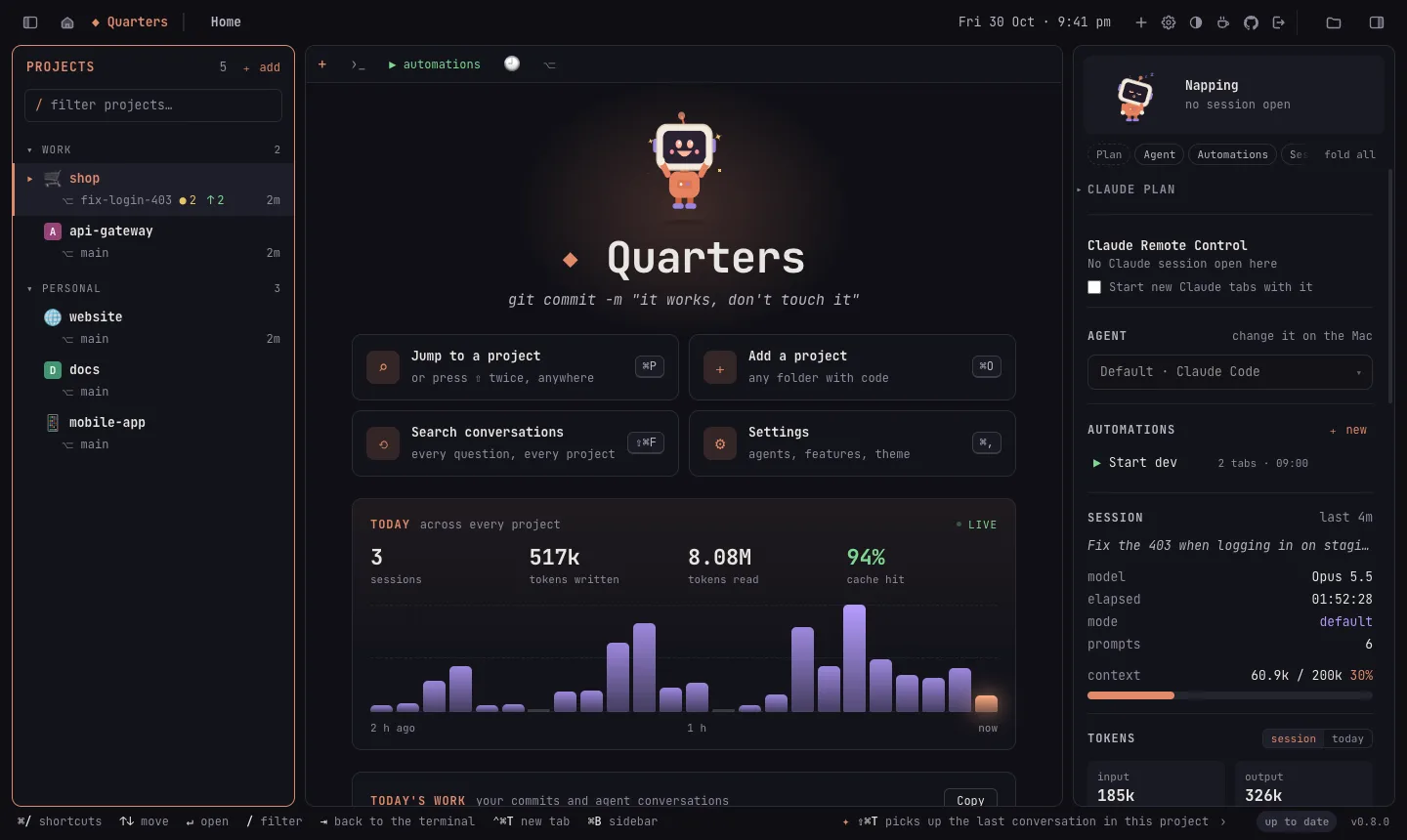
- Tiles
- Jump to a project (⌘P), add one (⌘O), search conversations (⇧⌘F) and Settings (⌘,). Under the name, a different tagline every time.
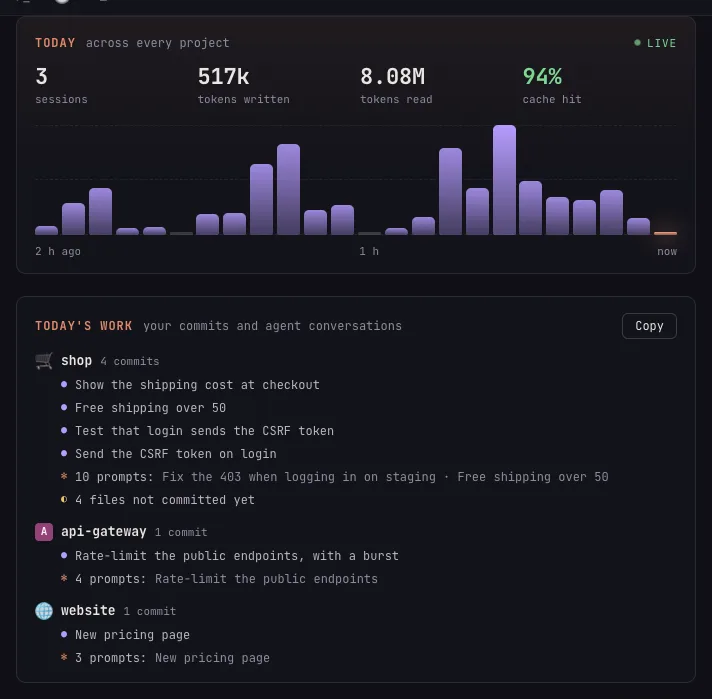
- Today
- Across every project: sessions, tokens written and read, and the cache hit rate, with the last two hours as a chart of five-minute bars. The bars rise in when Home opens and move as the numbers change; the current five minutes glow; hover a bar for its time and tokens. Read from Claude Code's logs, every 15 seconds.
- Today's work
- Per project you touched today: your commits since midnight (by your git email), the agent conversations you had and how many prompts, and how many files aren't committed yet. Copy (or Copy today's summary in ⇧⌘P) puts it on the clipboard as Markdown, for a standup or a timesheet.
- Active now
- Every running session, the ones waiting for you first; click one to go there.
Focus mode (⇧⌘↵) hides the panels and the hints bar, leaving only the terminal; the same keys bring back what was showing. Light and dark mode follow macOS, or pick one in Settings → Appearance.
Projects
Adding and arranging
- + add (⌘O) opens a dialog for the folder, a name, a group and an icon. In a browser, type the folder's path on the machine Quarters runs on. To add several projects at once, or to give a project's agent a command of its own, use Edit config.json… at the bottom of the dialog.
- Groups are headings; click one to fold or unfold it. Drag projects to reorder them.
- Icons: an image (favicons and app icons in the folder are suggested), or any emoji: Emoji… in the project's dialog has every emoji there is, by group, with a search by name.
- Hover a project for quick actions: ▶ automations, + new agent tab, ↻ continue the last conversation, ›_ shell, ⌕ show in Finder, ✎ edit.
- Right-click (or ✎) opens the project's dialog: name, folder, icon, colour, group, coding agent and permission mode for this project, its automations, and Remove from list (the folder itself is left alone).
Finding one
Type in / filter projects…, or press ⌘P or tap ⇧ twice to jump to any project or automation.
What the list shows
- ACTIVE at the top lists projects with open sessions. Those waiting for you come first, longest waiting first, with how long they've waited (and ? when the agent is asking you something). They stay in their own group too, where their status isn't shown twice. It shows once you have 5 projects or more; with fewer, they all fit at a glance.
- Git status under each project: branch, ● changed files, ↑ ahead and ↓ behind.
- Session state: ● working or ◐ waiting, and a count when several sessions are open. A project with nothing running shows no mark.
- A Remote Control icon when one of the project's Claude sessions has Claude's Remote Control on.
Tabs and sessions
Opening a project shows its start screen. From there, or with the tab bar's buttons:
| Key | Starts |
|---|---|
| C or ⌘T | a new session of the project's agent |
| ⇧C or ⇧⌘T | the agent, continuing the project's last conversation |
| S or ⌥⌘T | a shell in the project folder |
- A project can have as many tabs as you like, and they all keep running while you switch projects.
- ⌘1–9 switches tabs, ⇧⌘[ / ] goes to the previous or next. Double-click a tab to rename it. ⌘W closes it.
- The side panel's End this … session / End this shell button closes the current tab too, which is handy on a phone.
- In Claude's prompt, ⇧↵ adds a new line without sending.
- Drop files on a terminal to type their paths. Hover
[Image #N]to see a pasted image. - An image file a tab shows (say
…/scratchpad/sample.pngfrom an agent that made one) is a link: hover to preview it, click to see it full screen, Esc to close. Only images the tab itself showed can be opened. - ⌘K clears the scrollback; ⌘= ⌘- ⌘0 change the text size.
Permission mode. By default Claude starts with --dangerously-skip-permissions (“yolo”), so it edits files and runs commands without asking. Turn that off in Settings, globally or per project.
Split panes
Split a tab the way iTerm does, to keep a server, a test watcher or a spare shell next to the agent.
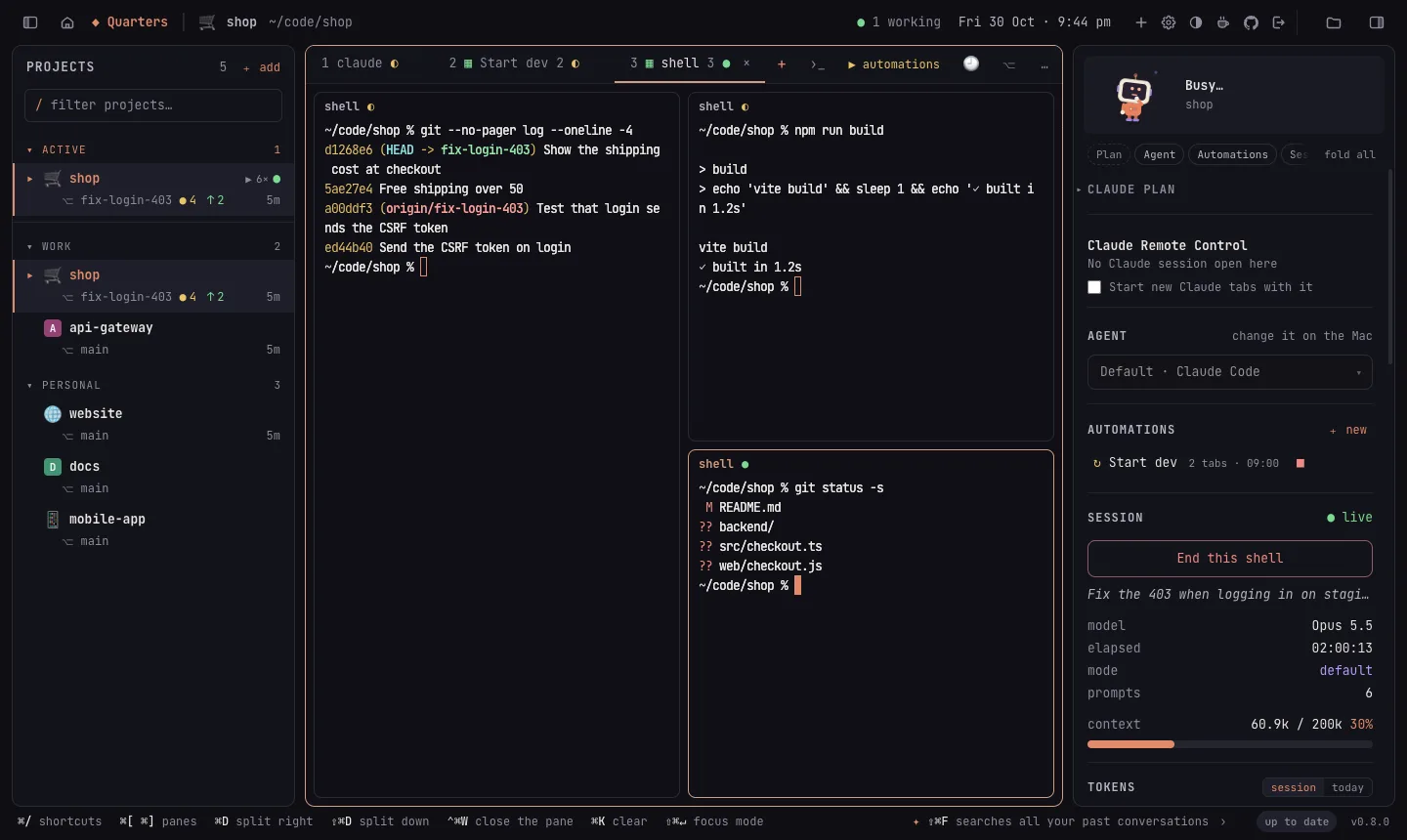
- ⌘D opens a shell beside the pane you're in, ⇧⌘D one below it. Splits nest, so any pane can be split again.
- ⌘[ and ⌘] move between panes; a click works too.
- ⌘W closes the pane you're in, and a pane whose shell exits cleanly (
exit) closes by itself. One that fails stays, so you can read what went wrong. With one pane left, the tab is an ordinary tab again. - Drag the line between two panes to resize them; double-click it to make them equal.
- Another window, a reloaded one or your phone shows the same panes. A phone shows one pane at a time.
Files and the editor
The files panel (⇧⌘E) shows the open project's folders and files, or the worktree the current tab works in. It is there for a look or a quick fix; keep your editor for real work.
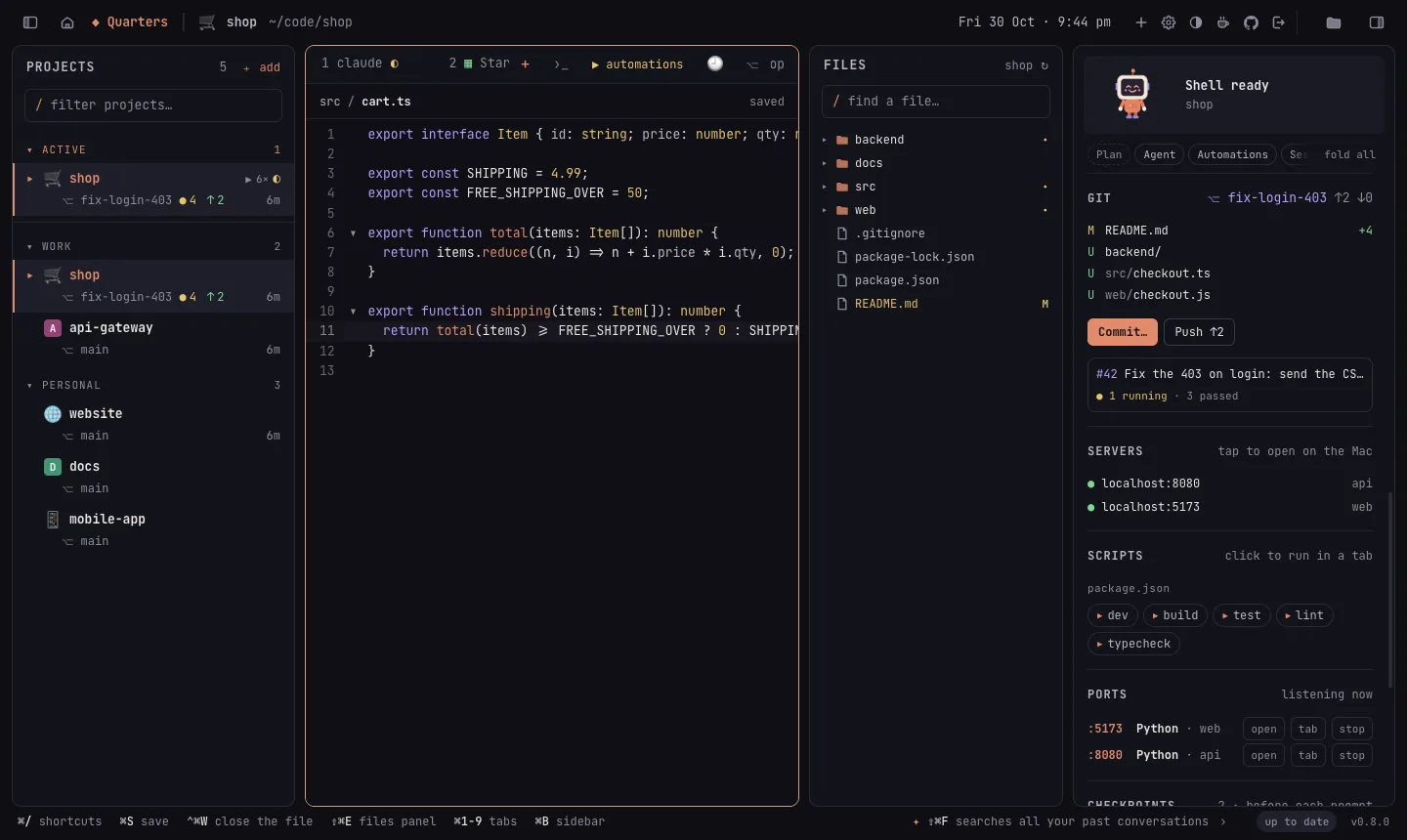
- Git's marks: M changed, U new, and a dot on folders with changes inside. Files git ignores are dimmed.
- Find a file: type in the box at the top to search the whole project; arrows and ↵ move and open.
- Right-click a file to open it with its app, show it in Finder, copy its path (full or relative), or type the path in the terminal.
- Click a file to open it in a tab after the terminal tabs, with syntax colours for about 30 languages and search (⌘F). ⌘S saves; a dot on the tab means unsaved changes, and closing it asks first. Images open in the image viewer.
- When an agent edits the file: with no unsaved changes, the editor follows the disk by itself. With unsaved changes, a save never overwrites the agent's edit: a bar asks you to Reload or Keep mine.
- Files that may hold keys or passwords (
.env,*.pemand the like) are never opened, and nothing outside the project can be read or written, links included.
“Your turn” and who's waiting
When an agent finishes in a tab you aren't looking at, Quarters tells you: a notification, a Dock badge with the number waiting, the tab and project marked, and the mascot's mood in the side panel.
With several agents running, ACTIVE puts the ones waiting for you first, longest waiting first, with how long. ⌘J (Session → Next Waiting for You), or a click on “◐ waiting” in the title bar, opens the next one.
No alert comes while a session still has queued prompts: it isn't your turn yet.
Prompt queue
Line up the next things for an agent to do (“add tests”, then “update the changelog”) and get on with something else: each prompt goes in when the agent has finished the one before.
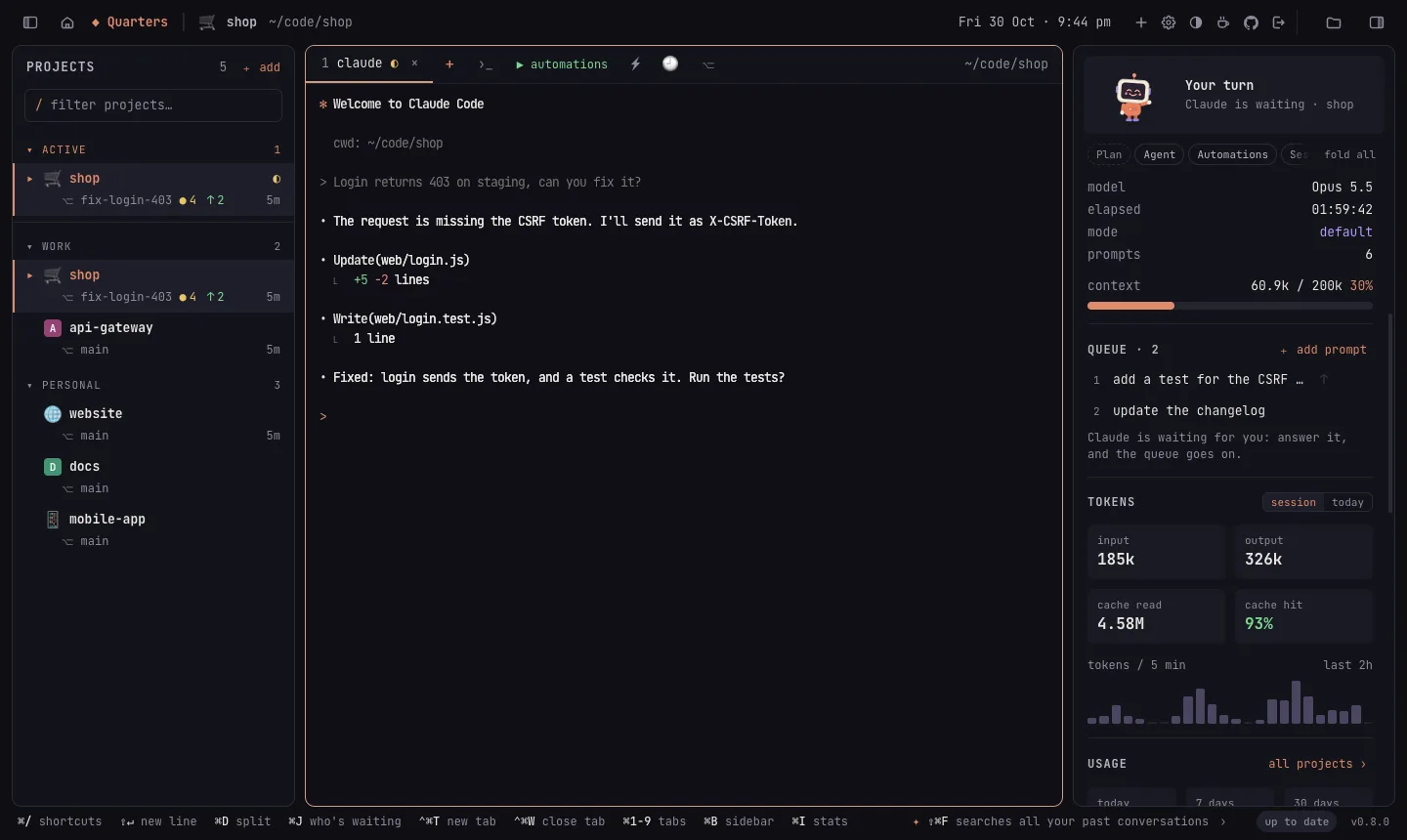
- In the side panel's QUEUE: + add prompt opens an editor (↵ adds it, ⇧↵ for a new line); ↑ moves one up, × removes it.
- On a phone, while the agent works, ⏭ in the message card queues what you typed.
- A prompt goes in after about 3 seconds of quiet. For Claude Code, Quarters also waits while a question or permission menu is on screen, and never types over a message you started in its input box. Other agents are waited on by their quiet alone.
- Each prompt is sent once, and the next only after the agent has worked on it.
- The queue moves on while a window that shows the session is open (on the Mac or in a browser).
Settings → Prompt queue switches it off.
Automations
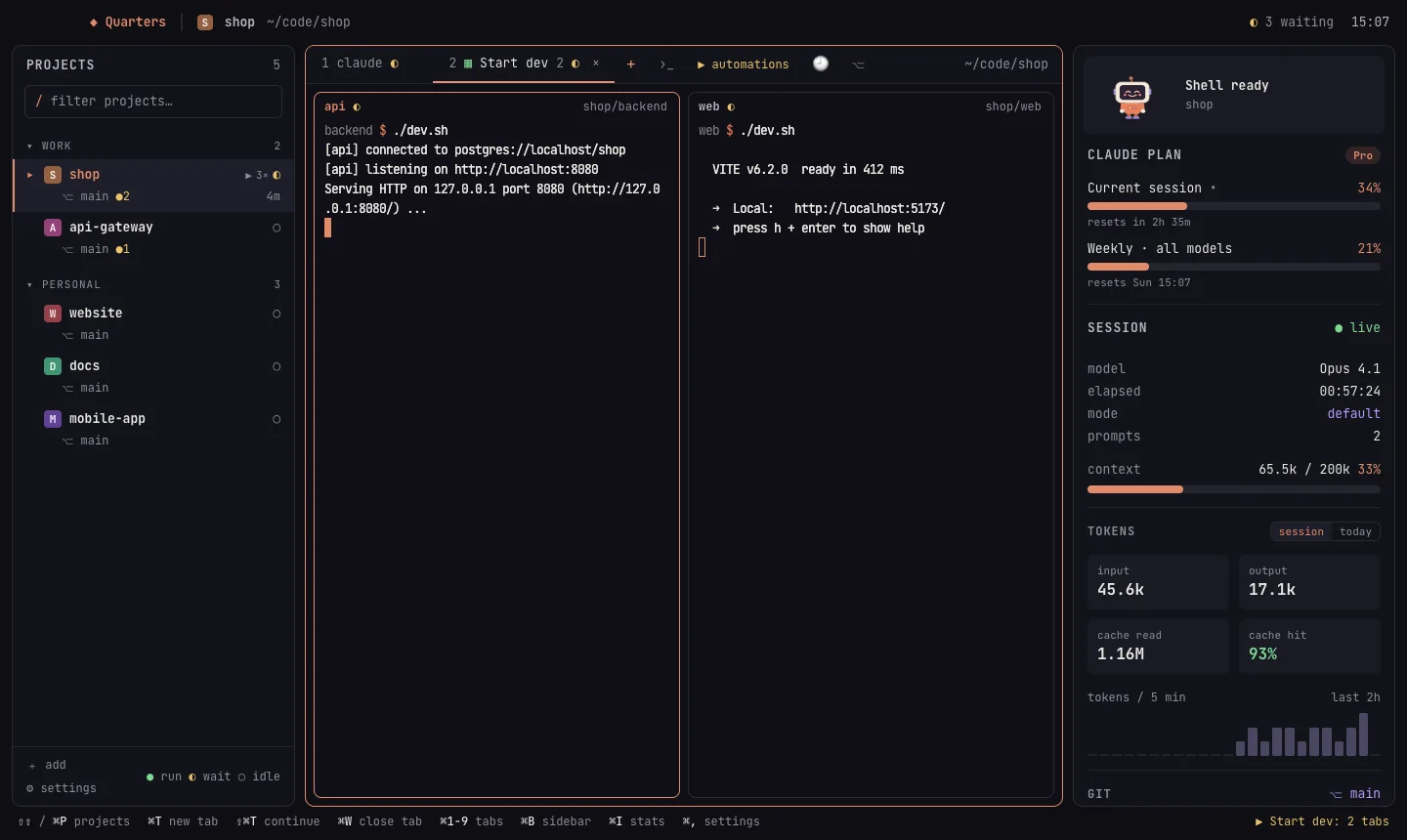
An automation opens a set of terminals together, each in its own folder and running its own command: the backend, the frontend, a watcher, a script.
Creating one
Right-click a project (or ✎) → + Add automation. Name it, pick a layout, and add its terminals: for each, a name, a folder (relative to the project) and a command, like npm run dev. Leave the command empty for a plain shell.
Layouts
- grid
- the terminals as panes of one tab, in a grid (the default)
- side by side
- panes in columns (
columnsin config.json) - stacked
- panes in rows (
rows) - separate tabs
- one tab each (
tabs)
Drag the borders between panes to resize them.
Running it
- By hand: ▶ on the project, ▶ automations in the tab bar, or ⌘P.
- When the project opens: tick run on open.
- On a schedule: a time and days (every weekday at 09:00, say). It runs once that day, unless it's already running.
Each command is typed into a login shell once it's ready, so Ctrl+C leaves you in that shell and ↑ runs it again. Servers your terminals start (localhost:3000…) appear in the side panel, with whether they're answering.
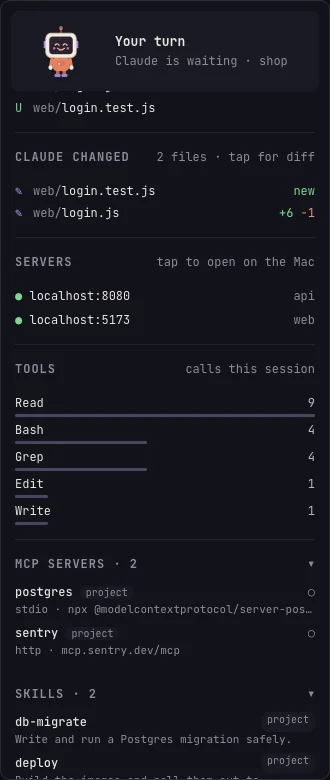
The side panel
- Plan
- Claude: as below. Antigravity: its plan and each model's quota (see Coding agents). Other agents: none.
- Claude plan
- Your usage limits (current session and weekly) and when they reset, as
/usageshows them, with a warning before you run out. - Claude Remote Control
- A switch for the current Claude session, and an option to start new Claude tabs with it. See Claude Remote Control.
- Agent
- The project's coding agent: pick one from the menu and Apply (on the Mac).
- Automations
- The project's automations: ▶ run (↻ restart while it runs), ■ stop, ✎ edit, × delete, and + new.
- Session
- Title, model, elapsed time, permission mode, prompts, context window use and the End button.
- Queue
- Prompts waiting for the agent; see Prompt queue.
- Tokens
- Input, output, cache reads and cache hit rate, for this session or today.
- Usage
- The project's tokens today, over 7 and 30 days, a 14-day chart and its share of your week; see Usage by project.
- Git
- Branch, ahead/behind and changed files (click one for its diff), Commit…, Push and Open a pull request, and the pull request with its checks; see Commit, push and pull requests.
- Claude changed
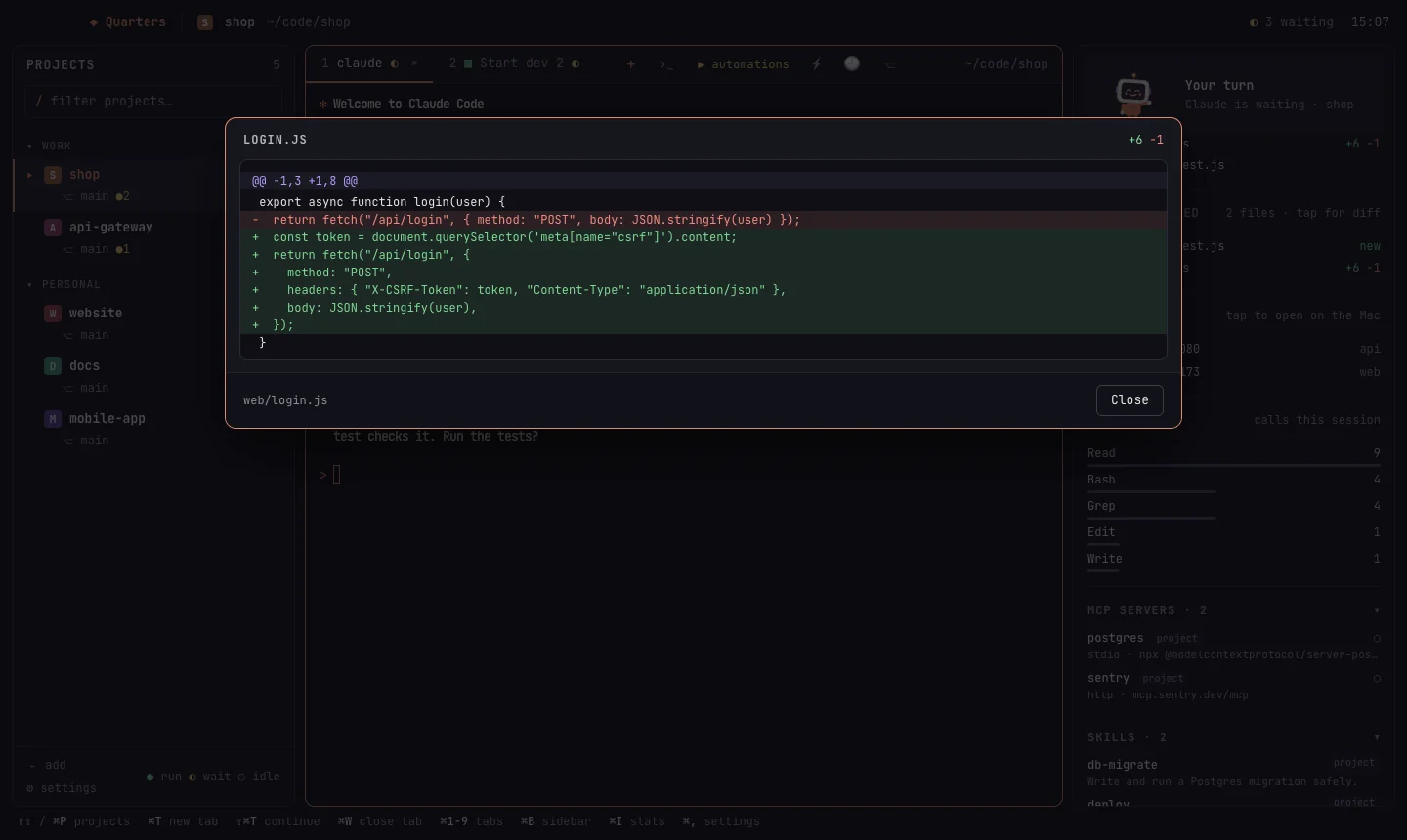
- The files Claude edited this session; click one for its diff.
- Servers
localhostlinks your terminals printed, up or down.- Scripts
- What the project knows how to run, one click away; see Scripts and ports.
- Ports
- What the project's tabs listen on, to open, go to or stop.
- Checkpoints
- A snapshot of the files before each prompt, to diff or restore; see Checkpoints.
- Instructions
- The project's CLAUDE.md, AGENTS.md… and your notes; see Instructions and notes.
- Tools, MCP servers, skills
- What Claude Code has available in this project.
Fold what you don't need: click a section's title to fold it to one line (it keeps its summary, like the branch or a count). The bar above the panel jumps to a section, unfolding it, and fold all folds every one. Each device remembers its own.
Usage by project
Which projects use your tokens. The side panel's USAGE shows the open project's tokens today, over 7 and 30 days, a chart of the last 14 days, and its share of your week. ⇧⌘U (View → Usage by Project) ranks every project.
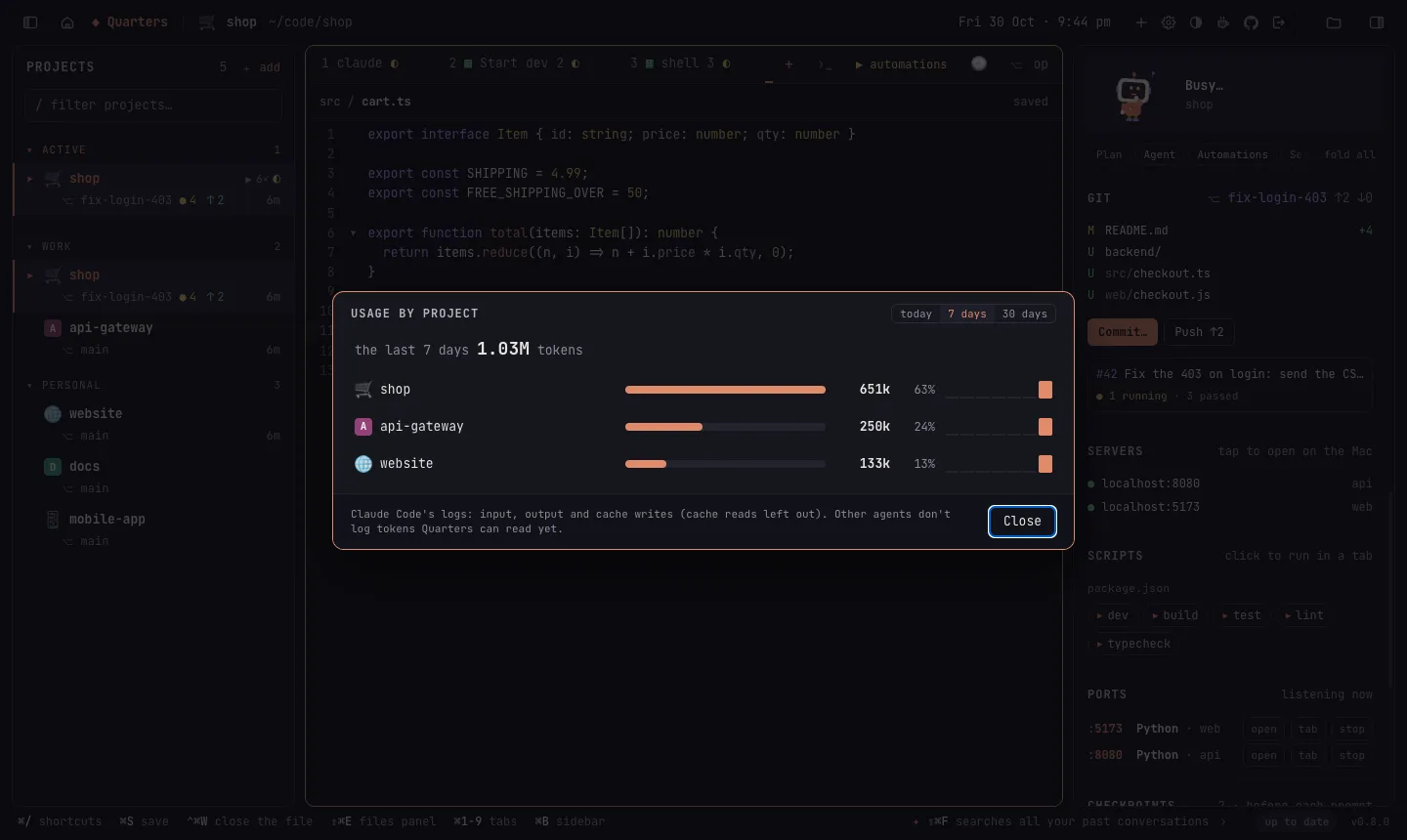
It counts Claude Code's logs: input, output and cache writes (cache reads are left out: they are cheap, and would swamp the rest). Worktrees count as their project. Other agents don't log tokens Quarters can read yet. Settings → Usage by project switches it off.
Instructions and notes
The side panel's INSTRUCTIONS lists the files coding agents read their standing instructions from (CLAUDE.md, AGENTS.md, GEMINI.md, CONVENTIONS.md), with how long each is. The file the project's agent reads is offered even before it exists. Click one to edit it.
- If the agent changes the file while you're editing it, saving doesn't overwrite its version: Open the new version shows it.
- A CLAUDE.md that links to AGENTS.md is saved through the link.
- Notes are yours, not the agent's: kept with Quarters' settings (
~/.config/quarters/notes/), not in the project. - Devices with less than full access can read them, not save.
Saved prompts
Instructions you type often, one click away: ⚡ in the tab bar (and on a phone's key bar) types one into the session. Add and edit them in Settings.
Past conversations
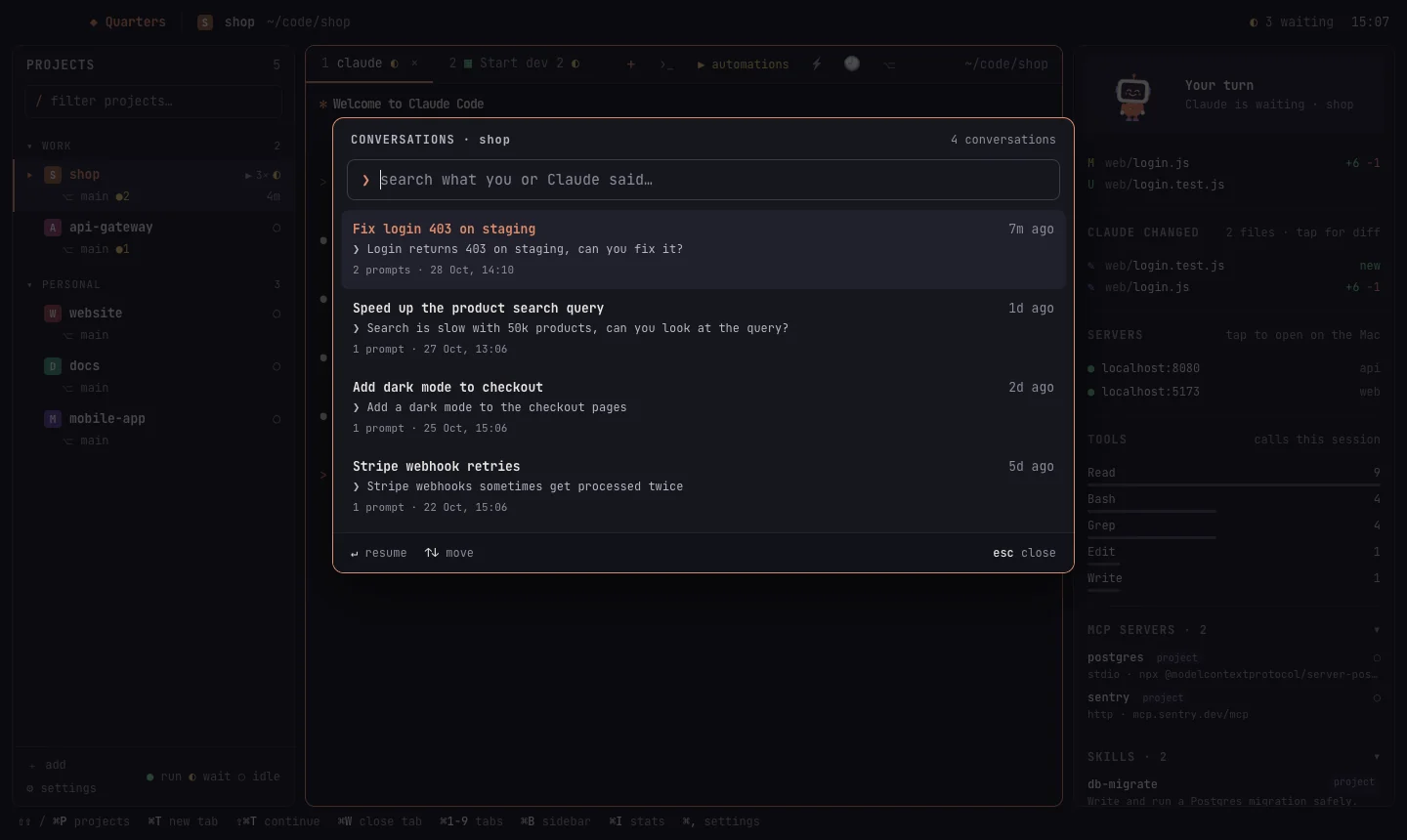
🕘 on the start screen or the tab bar (⇧⌘F) searches everything you and Claude said in a project. Open a conversation to resume it in a new tab.
Resuming after a restart
After you quit Quarters, restart the Mac, or after a crash, Quarters offers to reopen every Claude conversation and automation that was open, so you pick up where you left off.
Git worktrees
⎇ in the tab bar (⇧⌘G) starts Claude on a separate copy of the project (a git worktree) on its own branch. Several Claude sessions can then work on the same repository without stepping on each other.
Commit, push and pull requests
Under the changed files in the side panel's GIT section:
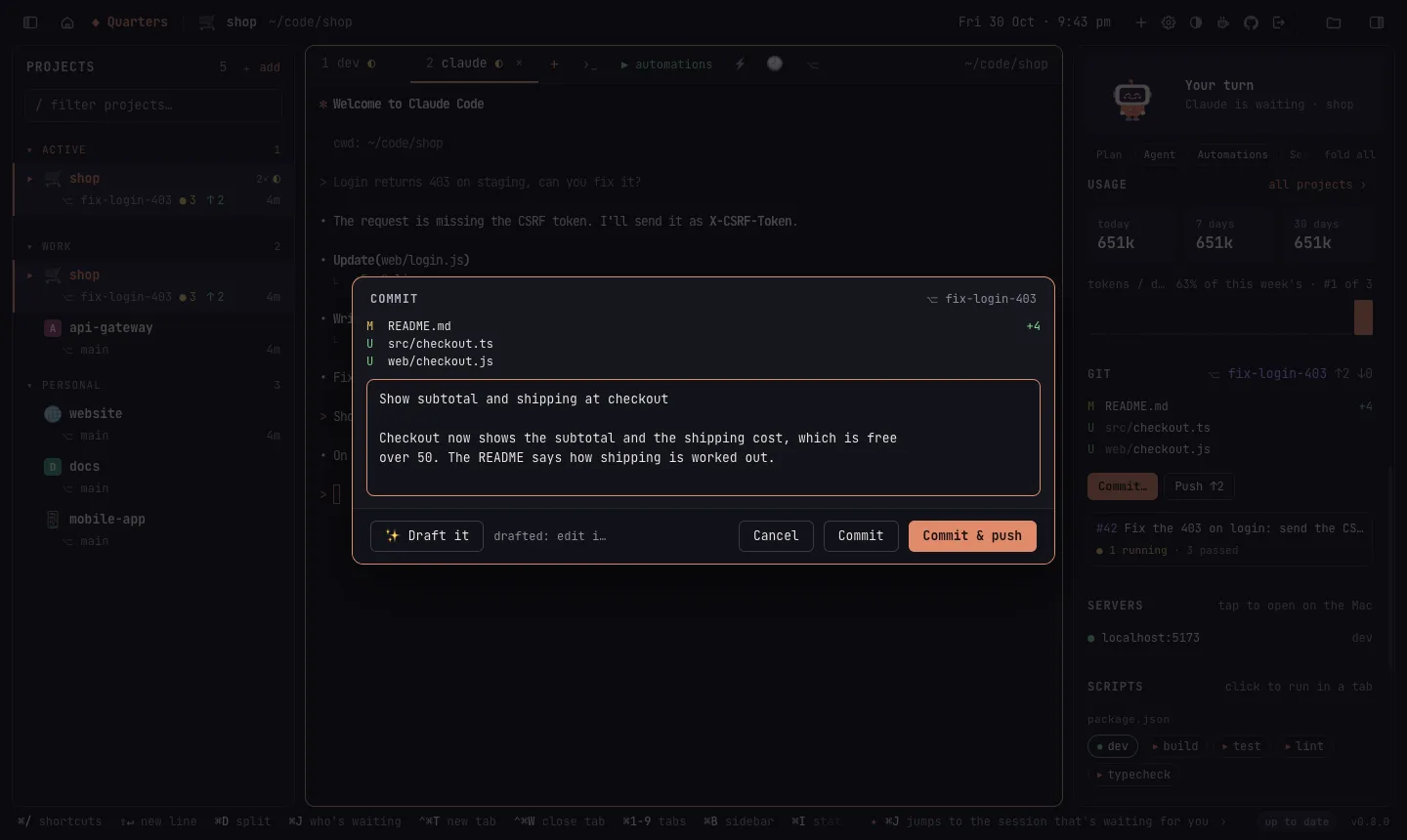
- Commit… opens a dialog with the changes and a message box. ✨ Draft it asks Claude Code (
claude -p) to write the message from the diff, in the style of the repository's recent commits; edit it as you like. Commit stages everything git doesn't ignore and commits it; Commit & push pushes too. ⌘↵ commits, ⇧⌘↵ commits and pushes. - Push ↑n appears when the branch is ahead; the first push of a branch sets its upstream (
git push -u origin HEAD). - Open a pull request pushes if needed and runs
gh pr create --fill(title and body from the commits), then opens it. - The branch's pull request shows with its checks: ✓ passed, ● running, or ✕ failed with which ones. Click it to open it on GitHub. It's read with
gh pr viewabout once a minute.
Files that look like they hold secrets (.env, *.pem, keys, credentials.json…) are never committed: the commit stops and names them, so you can add them to .gitignore; they're left out of the diff ✨ sends too. Pull requests and checks need the GitHub CLI (brew install gh, then gh auth login); without it, or in a repository that isn't on GitHub, those parts don't show. In a browser, only devices with full access can commit or push.
Scripts and ports
Scripts
The side panel's SCRIPTS section lists what the project knows how to run:
| From | Runs |
|---|---|
package.json scripts | pnpm run, yarn run, bun run or npm run, from the project's lockfile (install hooks left out) |
Makefile targets | make <target> (not special targets, patterns or files) |
justfile recipes | just <recipe> (not private ones) |
deno.json tasks | deno task <task> |
Cargo.toml | cargo run (with a src/main.rs), build, test, clippy |
go.mod | go run . (with a main.go), go build ./..., go test ./..., go vet ./... |
A click runs one in a tab of its own, named after it. A script that's running is marked green, and its button goes to its tab instead of starting it again. In ⇧⌘P, type run dev (or any script's name) to run it.
Ports
PORTS lists the TCP ports the project's tabs listen on (1024 and up), with the process (node, vite, python…) and the tab, whatever runs inside it, and then other processes of yours whose working folder is in the project. open opens http://localhost:<port>, tab goes to the tab that started it, and stop ends the process (SIGTERM, then SIGKILL after 3 seconds); it asks for a second click when Quarters didn't start the process. Read with lsof (or ss on Linux without it).
Checkpoints
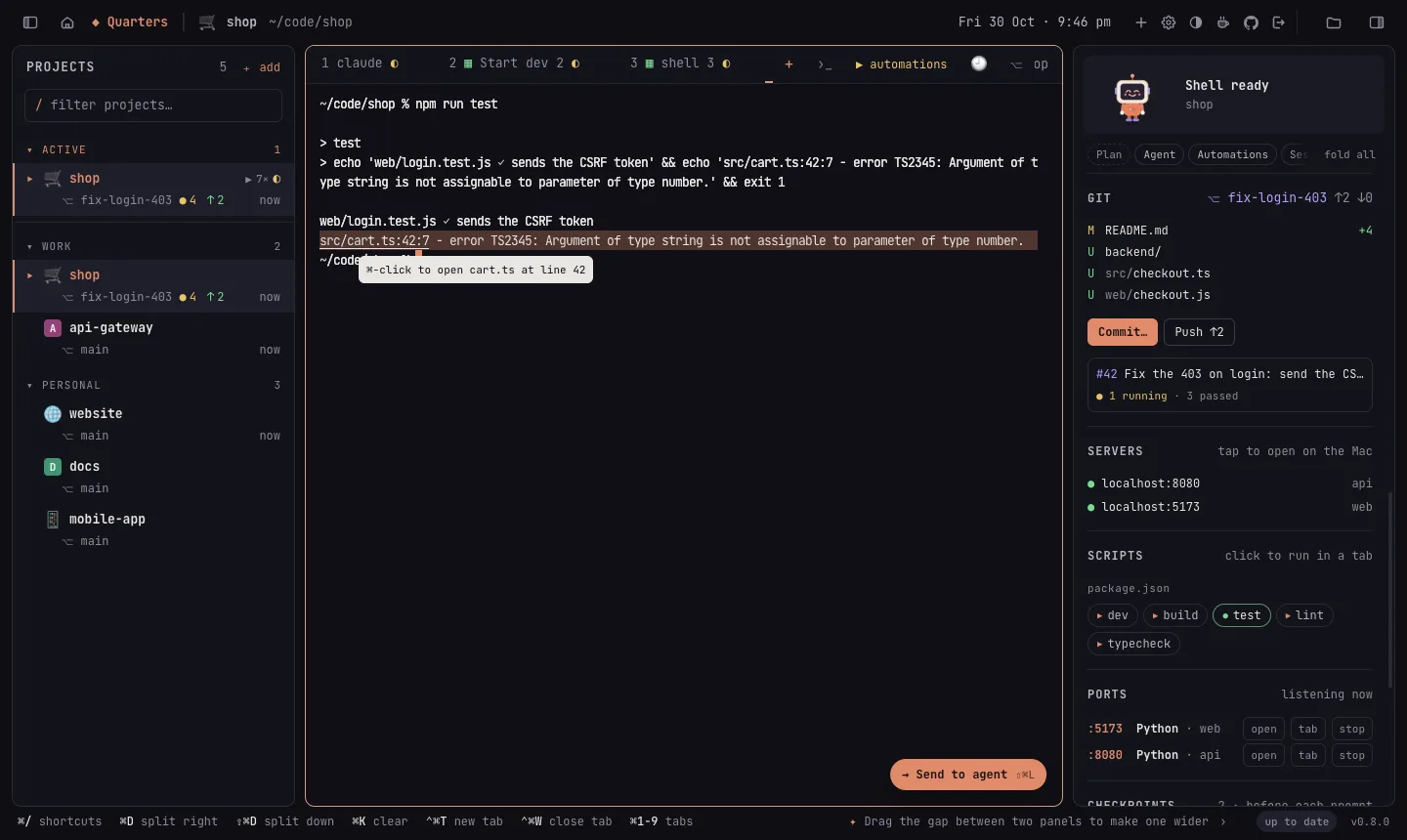
Each time you send an agent a prompt (Enter in its tab, a queued prompt, or from a browser), Quarters snapshots the project's files: everything git doesn't ignore, committed or not, except files that look like they hold secrets. The CHECKPOINTS section lists them, newest first, with what changed after each (until the next one, or until now).
- Click one to see every file changed since, and each file's diff.
- restore (or Restore these files) puts the files back as they were: changed and deleted files come back, files made since go. It takes a checkpoint of how things are first, so a restore can be undone too. Ignored files and secret-looking files are left alone.
- A checkpoint is a git commit kept under
refs/quarters/checkpoints/, written through a temporary index: your branch, your staged changes and your stash are never touched, and it's on no branch, sogit pushdoesn't send it. A checkpoint identical to the last one is skipped, and the last 50 per project are kept. - Only in git repositories. Switch it off in Settings → Checkpoints.
Clickable errors, send to agent
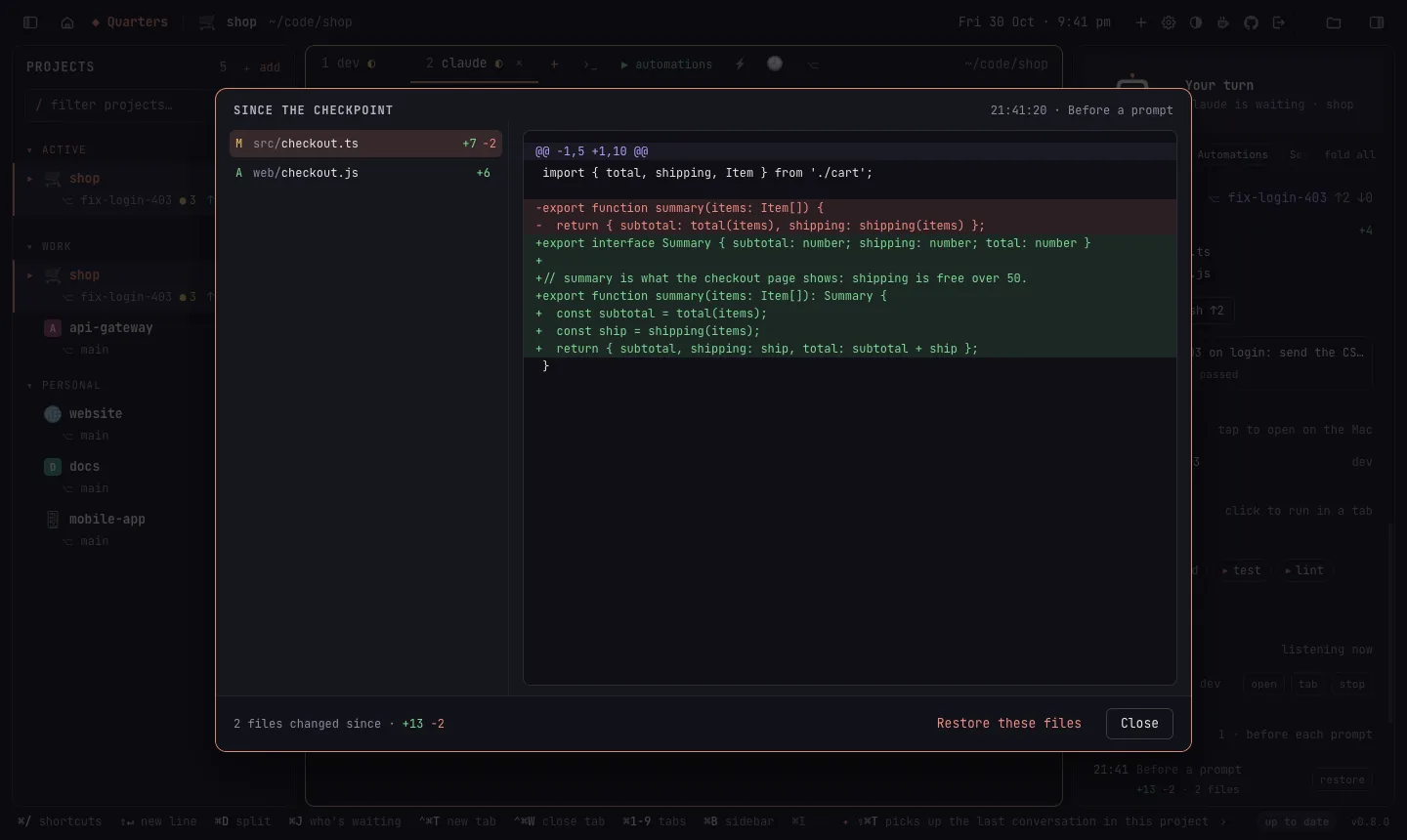
Clickable locations: where a compiler, a linter or a stack trace says a problem is, src/cart.ts:42:7, main.go:12, Foo.cs(10,5) or Python's File "app.py", line 3, is a link when the file is in the project (or the tab's worktree). ⌘-click it to open the file in the editor at that line (a tap, on a phone). Hover it for a hint.
Send to agent (⇧⌘L): select output in a terminal, or lines in the editor, and press it, or click the Send to agent button that appears beside a selection. The text is typed into the project's agent tab (the one in view, else the one you used last), fenced as code, with the file and line numbers when it comes from the editor, but not sent: add what to do with it, and press Enter.
Search every project
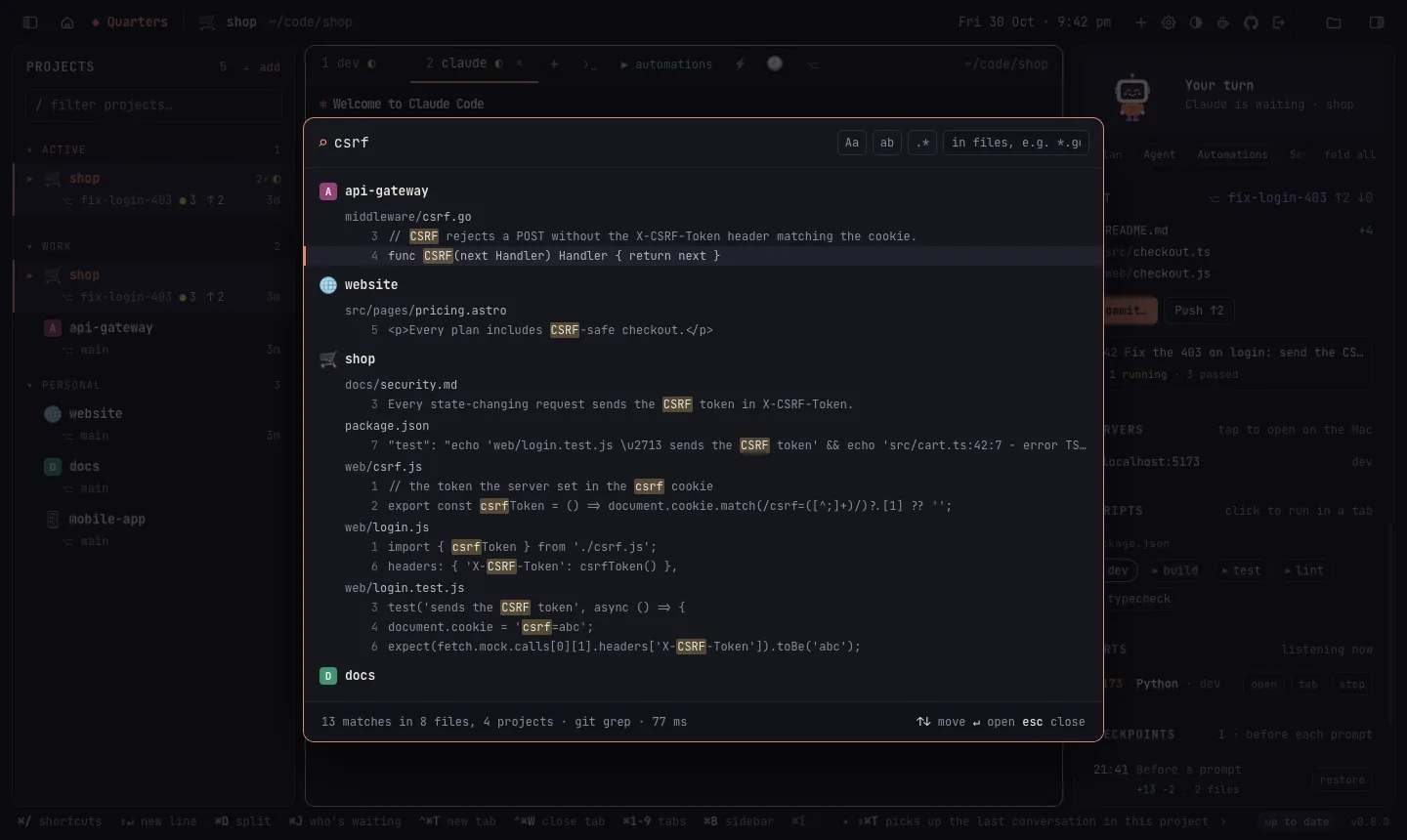
⇧⌘K (or Search every project in ⇧⌘P) searches the files of all your projects at once, the ones you used most recently first. It uses ripgrep when it's installed (fast, and it respects .gitignore), otherwise git grep in each project.
- Aa matches case, ab whole words only, .* takes a regular expression; in files narrows it to paths like
*.go. - Results come by project and file, with the match highlighted; ↑ ↓ move, ↵ opens the file at the line.
- Up to 400 matches (20 per file). Files that look like they hold secrets are never searched or shown.
Settings and features
⌘, opens Settings: the theme, the coding agent new tabs start and its permission mode (both also per project), saved prompts, the global hotkey, the usage warning level, and a switch for every optional feature:
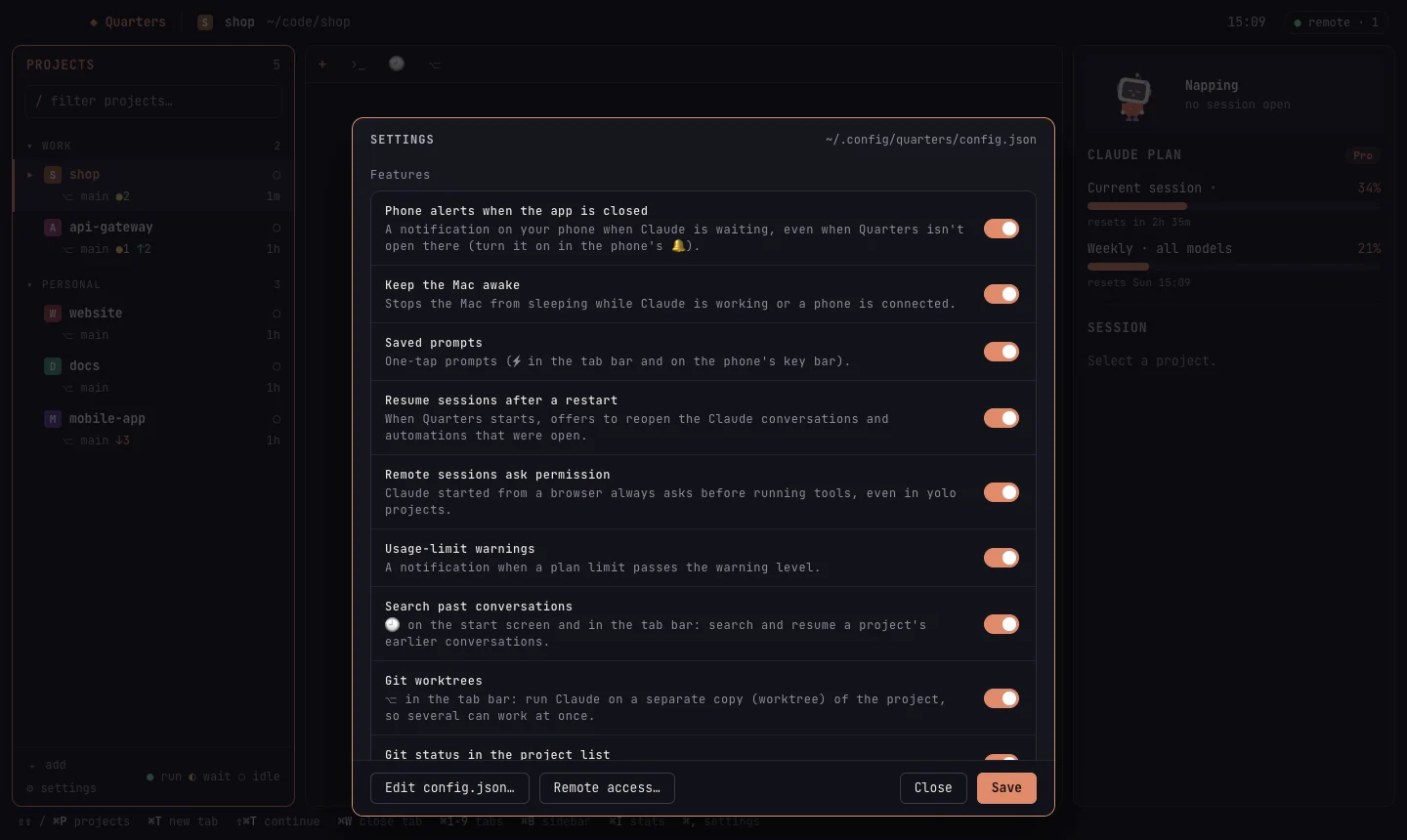
| Feature | What it does | Default |
|---|---|---|
| Phone alerts when the app is closed | A notification on your phone when Claude is waiting, even when Quarters isn't open there. | on |
| Keep the Mac awake | Stops the Mac sleeping while Claude is working or a phone is connected. | on |
| Saved prompts | ⚡ in the tab bar and on the phone's key bar. | on |
| Phone key bar | Esc, tab, ⇧tab, ctrl and arrows above a phone's keyboard while you type. Shells, and agents whose menus can't be tapped, always have it. | on |
| Resume sessions after a restart | Offers to reopen the conversations and automations that were open. | on |
| Remote sessions ask permission | Claude started from a browser always asks before running tools, even in yolo projects. Mac only. | off |
| Usage-limit warnings | A notification when a plan limit passes the warning level. | on |
| Search past conversations | 🕘 on the start screen and tab bar. | on |
| Git worktrees | ⎇ in the tab bar. | on |
| Git status in the project list | Branch, changed files and ahead/behind. | on |
| What Claude changed | Edited files in the side panel, with diffs. | on |
| Scheduled automations | Automations with a time run by themselves. | on |
| Prompt queue | Line up prompts for a session; each is sent when the agent finishes the one before. | on |
| Usage by project | Which projects use your tokens: today, 7 and 30 days, from Claude Code's logs. | on |
| Agent instructions & notes | Edit the project's CLAUDE.md, AGENTS.md… and keep your own notes. | on |
| Dev server links | Servers your terminals start, up or down. | on |
| Checkpoints | A snapshot of the project's files before each prompt, to diff or restore. | on |
| Scripts & ports | The project's scripts to run in a tab, and the ports its tabs listen on. | on |
| Skills & MCP servers | The project's skills and MCP servers in the side panel. | on |
| Global hotkey | Brings Quarters to the front from any app. Mac only. | on |
⌥⌘, opens config.json directly: in your text editor on the Mac, in Quarters' own editor in a browser.
Theme and colours
- Theme: Settings → Appearance: System (follows macOS, or the phone), Light or Dark, for the window and its terminals. Each device keeps its own.
- Tips: a quiet line at the bottom right about a key or a panel, the ones you haven't used first. The next one fades in every two minutes; › shows it now.
- Project colours: each project's tabs and terminal frame take its colour, so you can tell projects apart at a glance. By default it is the colour of its letter tile; pick another in the project's dialog (✎), or Quarters orange.
Keyboard shortcuts
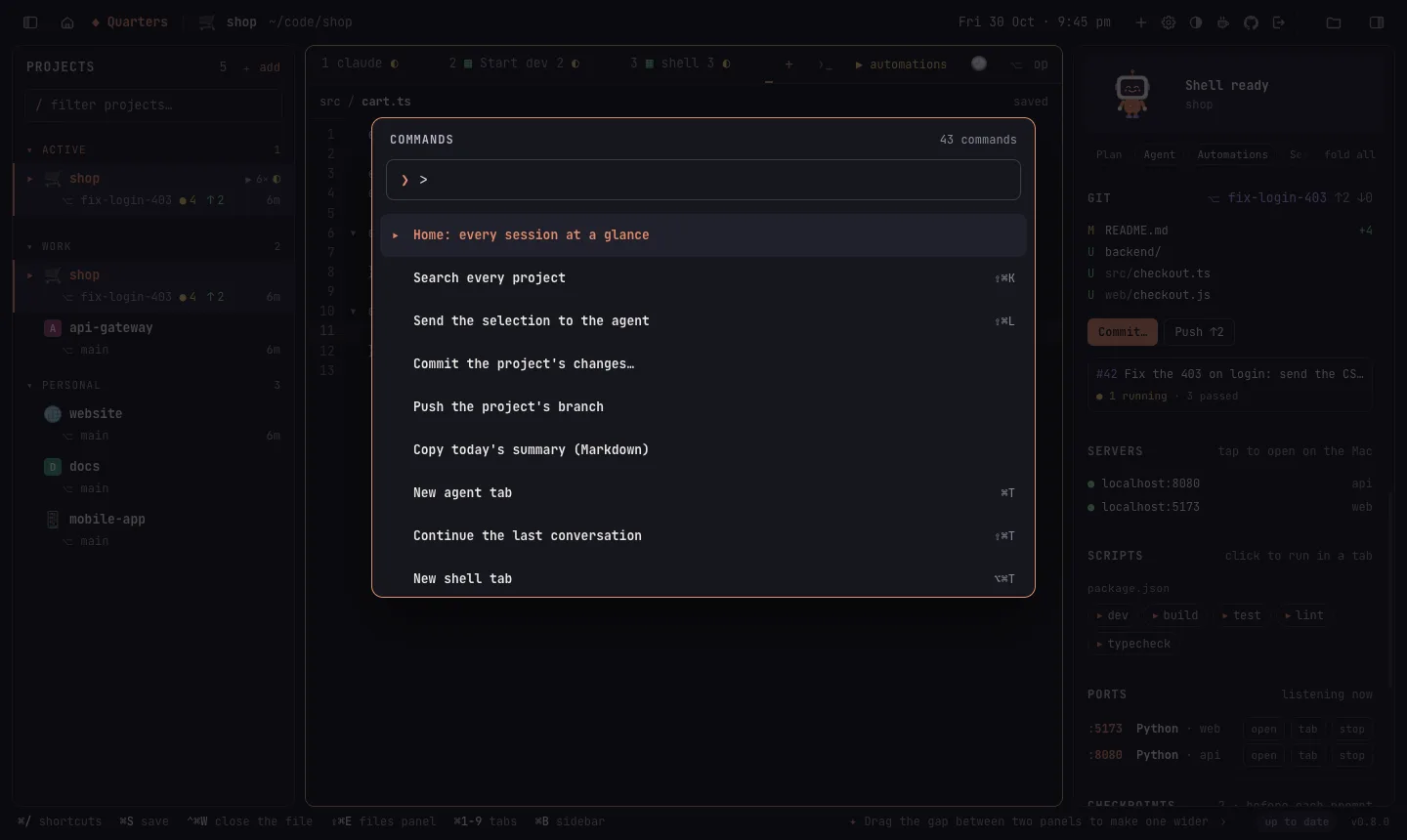
Press ⌘/ (Help → Keyboard Shortcuts) in the app for this list. ⇧⌘P finds every command by name, with its shortcut (or type > in the jump list).
In a browser the same keys work. On a Mac, Chrome keeps ⌘T, ⌘W and ⇧⌘[ ⇧⌘] for its own tabs: add ⌃ (⌃⌘T). On Linux and Windows, Alt stands in for ⌘ (Alt+P, Alt+Shift+P), and the app's labels say so. The status bar shows the keys for what's in front of you.
| Projects | |
|---|---|
| ⇧ ⇧ or ⌘P | Jump to a project or automation |
| ⇧⌘P | Every command, by name |
| C | Start Claude in the open project |
| ⇧C | Continue the last conversation |
| S | Open a shell |
| ⌘O | Add a project |
| ⇧⌘R | Show the project in Finder |
| Tabs | |
|---|---|
| ⌘T | New Claude tab |
| ⇧⌘T | Continue the last conversation in a new tab |
| ⌥⌘T | New shell tab |
| ⌘W | Close the tab (in a split: the pane) |
| ⌘D ⇧⌘D | Split: a shell beside / below this one |
| ⌘[ ⌘] | Previous / next pane |
| ⌘1 … ⌘9 | Go to tab 1–9 |
| ⇧⌘[ ⇧⌘] | Previous / next tab |
| ⌘J | Go to the session waiting for you longest |
| Double-click | Rename a tab |
| In a terminal | |
|---|---|
| ⇧↵ | New line in Claude's prompt |
| ⌘K | Clear the scrollback |
| ⌘= ⌘- ⌘0 | Bigger / smaller / normal text |
| Drop files | Type their paths |
| Panels and tools | |
|---|---|
| ⌘B | Show or hide the projects panel |
| ⌘I | Show or hide the side panel |
| ⇧⌘E | Show or hide the files panel |
| ⌘S | Save the file in the editor |
| ⇧⌘↵ | Focus mode: only the terminal |
| ⇧⌘F | Search past conversations |
| ⇧⌘G | Worktrees |
| ⇧⌘K | Search every project |
| ⇧⌘L | Send the selection to the agent |
| ⌘-click | Open a file:line from a terminal in the editor |
| ⇧⌘U | Usage by project |
| ⌘, | Settings |
| ⌥⌘, | Edit config.json |
| ⌥⌘R | Start or stop the remote-access server |
| ⌃⌥Space | From any app: bring Quarters forward or hide it |
| ⌘/ | All shortcuts |
Remote access
How remote access works
Run Quarters on the machine that has your code and use it from any browser: a laptop on the road, a tablet, your phone. You see the same live sessions: start Claude on the Mac, answer it from your phone, finish on the laptop.
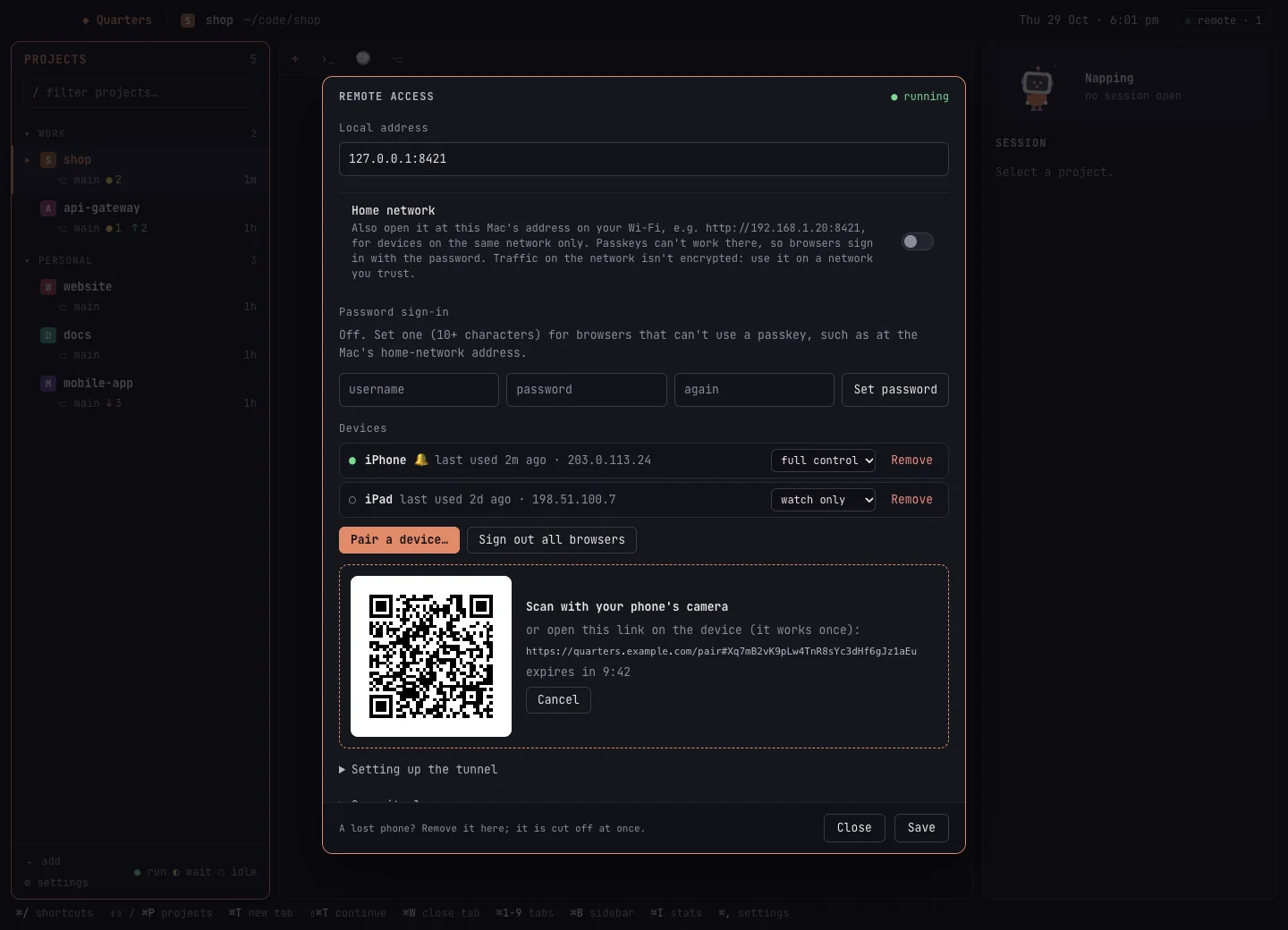
- It is off until you start it: Projects → Remote Access… → Start server, ⌥⌘R, or the pill in the title bar.
- It gives whoever signs in a shell on your machine, so it is protected by passkeys or a password, pairing only from the Mac, and per-device access levels. See Security.
- There are two ways in: from anywhere through an HTTPS tunnel, or on your home network by IP address.
From anywhere (HTTPS)
Quarters itself only listens on 127.0.0.1. A tunnel you run gives it a public HTTPS address, so no router ports are opened.
- Make a tunnel. With Cloudflare and your own domain:
Or with Tailscale:brew install cloudflared cloudflared tunnel login cloudflared tunnel create quarters cloudflared tunnel route dns quarters quarters.example.com cloudflared tunnel run --url http://127.0.0.1:8421 quarterstailscale funnel 8421, and use thehttps://….ts.netaddress it prints. - In Quarters, Projects → Remote Access…: enter the address (
https://quarters.example.com) as the public URL and press Start server. - Pair a device… and scan the QR code with your phone. It creates a passkey on the phone.
- On the phone, add the page to the home screen. From then on, open it and sign in with Face ID or your fingerprint.
No tunnel, another computer? Leave the public URL empty and start the server: Quarters is then at http://localhost:8421, which another computer can reach over SSH: ssh -L 8421:localhost:8421 your-mac, then open http://localhost:8421 and the pairing link there.
On your home network
No tunnel needed: devices on the same Wi-Fi open Quarters at the Mac's IP address.
- In Remote Access, turn on Home network and set a username and password.
- Start the server. The dialog shows the addresses (like
http://192.168.1.20:8421) and a QR code. - On the phone or tablet, open that address and sign in with the password.
- Only this Mac and private addresses (192.168.x.x, 10.x.x.x, 172.16–31.x.x, Tailscale's 100.64.x.x) are answered.
- Passkeys need HTTPS and a domain name, so they don't work on a plain IP address: sign in with the password.
- The connection isn't encrypted. Use it on networks you trust.
- Give the Mac a fixed address in your router so the address doesn't change.
Signing in and devices
- Passkeys
- Face ID, Touch ID or the device PIN, created when you pair a device. Bound to your domain, so a look-alike site can't use them. Needs HTTPS (or
localhost). - Username and password
- Only if you set one (Remote Access → Password sign-in, or
--set-password). At least 10 characters, stored as an argon2id hash, rate-limited. Setting a new password signs its browsers out. - Pairing
- Only from the Mac: Pair a device… shows a QR code with a one-time link, good for one device for 10 minutes.
Access levels
Every device, and the password sign-in, is listed in Remote Access with when it was last used. Each one can be:
| Level | Can |
|---|---|
| Full | everything: open projects, start Claude and shells, run automations |
| Type only | type into sessions that are already running |
| Watch only | watch, without typing |
Removing a device signs it out at once. Some settings (like remote sessions asking permission) can only be changed on the Mac.
On a phone
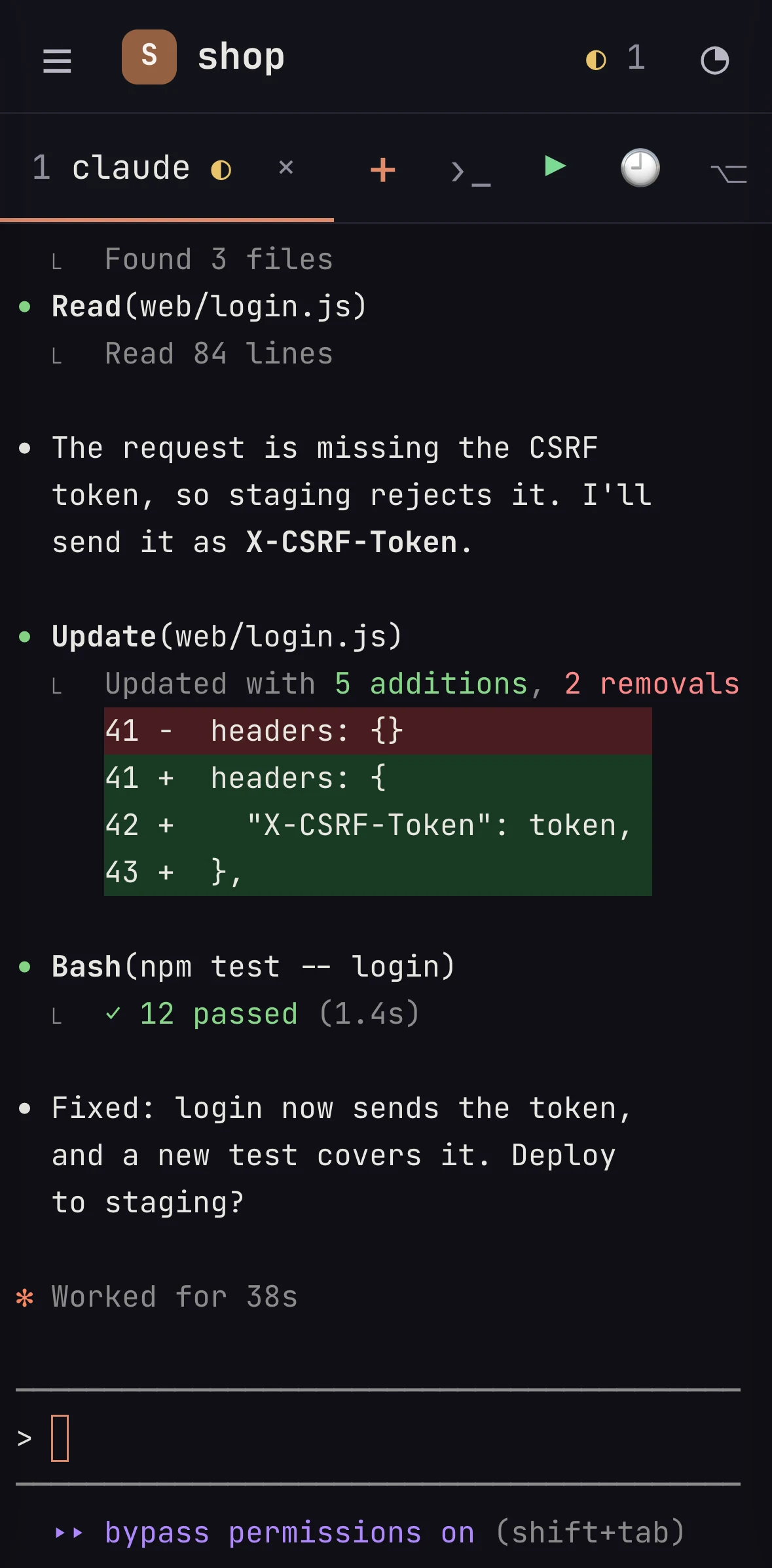
On a phone, Quarters is laid out for a small screen: ☰ opens the projects, ⋯ opens the side panel, and the title shows the project, the tab and what it's doing.
Agent tabs: the same for every agent
Claude Code, Codex, OpenCode and every other coding agent get the same session view:
- The transcript at the top: the agent's own terminal, or for Claude Code a chat that reads like the Claude app (your messages, its replies, the tools it ran folded into rows you can open). When a reply names an image file it made (a PNG, JPEG, GIF or WebP), the picture shows under it; tap it to see it full screen. Only images the tab itself showed can be opened. 💬 / ▤ switches between them; each agent remembers your choice.
- The message card at the bottom, the one place to type: ↑ sends, and while the agent works ■ stops it with that agent's own key, and ⏭ queues what you typed for when it finishes. Tap the terminal and the card's keyboard comes up. With the card empty, ⌫ deletes in the agent's own input.
- The tools (new tab, shell, automations, prompts, past conversations, worktrees) sit in the card.
- Menus and questions: in Claude Code's chat they become buttons, and in its terminal you can tap an option. For other agents, use the key bar's arrows and ↵, which always come up with their keyboard.
- The key bar (esc, tab, ⇧tab, ctrl, ^C, arrows) comes up with the keyboard. Its ctrl followed by a letter sends Ctrl+letter to the agent.
Shell tabs: a terminal
- Tap the terminal and type straight into it; the tools are in the tab bar.
- The key bar always comes up with the keyboard, since phone keyboards lack those keys.
- Swipe to scroll.
On a tablet
A tablet gets the full three-panel layout, like the Mac. Agent and shell tabs are all terminals: tap and type into them (into the agent's own input box in an agent tab). The key bar comes up with the keyboard.
Installing it as an app
Quarters is an installable web app, so it gets its own home-screen icon.
iPhone and iPad
In Safari, open Quarters, tap Share → Add to Home Screen. This works over HTTPS and on the home network.
Android
Over HTTPS (a tunnel), Chrome offers Install app directly. On the home network's plain HTTP address, Chrome only installs apps from secure addresses, so tell it to trust this one, once:
- In Chrome, open
chrome://flags/#unsafely-treat-insecure-origin-as-secure. - Enter the address, e.g.
http://192.168.1.20:8421. - Set it to Enabled and tap Relaunch.
- Open the address, sign in, then ⋮ → Install app.
The sign-in page shows these steps when it's opened on Android over plain HTTP. If you installed it before changing the setting, remove the old icon and install it again. Over plain HTTP, Chrome may still open the app with its address bar; only an HTTPS address removes it.
Phone alerts
Tap 🔔 notify me in the projects panel to get a notification when Claude is waiting, even with Quarters closed on the phone. Browsers only allow these notifications over HTTPS, and on an iPhone only from the home-screen app.
Claude Remote Control
Separate from Quarters' own remote access, Claude Code has a Remote Control that lets you continue a session at claude.ai/code or in the Claude app. In the side panel:
- The switch shows whether the current Claude session has Remote Control on, and turns it on or off.
- Start new Claude tabs with it turns it on for every new Claude tab.
Projects with a session using it show a Remote Control icon in the list.
Reference
Command line
On Linux, quarters runs these. On a Mac with no screen, the same work with Quarters.app/Contents/MacOS/Quarters, plus --serve to run only the server.
| Command | Does |
|---|---|
quarters | start the server (Linux); prints its addresses and a pairing link |
--set-password NAME | set or change the username and password; signed-in browsers sign in again |
--pair | a one-time link that pairs a device with a passkey (HTTPS or localhost only) |
--devices | list the paired devices and the password sign-in |
--remove-device NAME | unpair a device by name or id; it is signed out at once |
--help | all of the above |
These work while the server is running and take effect straight away. To keep it running on Linux, a systemd user service works well:
# ~/.config/systemd/user/quarters.service
[Unit]
Description=Quarters

[Service]
ExecStart=/usr/local/bin/quarters
Restart=on-failure

[Install]
WantedBy=default.target
systemctl --user enable --now quarters
loginctl enable-linger $USER # keep it running when you're logged outconfig.json
Settings and projects live in ~/.config/quarters/config.json. Most of it is edited from the app, but you can edit the file too (⌥⌘,, or Edit config.json… in Settings and in Add Project). On the Mac it opens in your text editor. In a browser it opens in Quarters' own editor, which won't save a mistake (it shows the line it's on) or a change to remote access, so you can't lock yourself out. Quarters picks up changes within seconds, and tells you about a mistake without overwriting the file.
{
  "projects": [
    { "name": "Shop", "path": "~/code/shop", "group": "Work", "icon": "web/favicon.svg",
      "automations": [
        { "name": "Start dev", "layout": "columns", "auto": true,
          "schedule": { "at": "09:00", "days": ["mon", "tue", "wed", "thu", "fri"] },
          "tabs": [
            { "name": "api", "dir": "backend", "command": "npm run dev" },
            { "name": "web", "dir": "web",     "command": "npm run dev" },
            { "name": "shell" }
          ] }
      ] },
    { "path": "~/code/api-gateway", "group": "Work", "command": ["claude", "--model", "sonnet"], "yolo": false },
    { "path": "~/code/ml", "harness": "codex" }
  ],
  "yolo": true,
  "shell": "/bin/zsh"
}| Field | Meaning |
|---|---|
projects[].path | project folder (~ allowed); required |
projects[].name | label in the list (default: the folder name) |
projects[].group | heading to group projects under |
projects[].icon | image next to the project (png, jpg, svg, ico, webp; relative = inside the project), or an emoji, e.g. "🚀" |
projects[].color | colour of its tabs and terminal frame: #rrggbb or accent (default: from its name) |
projects[].harness | this project's coding agent, overriding harness |
projects[].command | how the project's agent starts in this project |
projects[].yolo | true/false: skip the agent's permission prompts here, overriding yolo |
projects[].automations | terminals to start together: name, layout (grid, columns, rows, tabs), auto, schedule, tabs (name, dir, command) |
harness | the coding agent new tabs start: claude (default), codex, gemini, antigravity, opencode, copilot, devin, aider, amp, goose, qwen or cursor |
command | how Claude Code starts (default ["claude"]) |
yolo | skip the agent's permission prompts (default true; each agent's switch is in Coding agents) |
shell | shell for shell tabs (default $SHELL, else zsh, bash or sh) |
prompts | saved prompts for ⚡ |
features | optional features switched on or off, e.g. {"checkpoints": false}; the keys are web_push, keep_awake, prompts, keybar, restore, remote_ask, usage_alerts, history, worktrees, git_status, changes, schedules, prompt_queue, usage, instructions, dev_links, checkpoints, scripts, skills, hotkey |
hotkey | global hotkey, e.g. ctrl+alt+space |
usage_alert_at | warn when a plan limit passes this percentage (default 80) |
context_window | tokens; 0 = read from Claude Code's model setting |
claude_remote_control | start new Claude tabs with Claude's Remote Control |
remote | remote access (set in the app; "lan": true for the home network) |
layout | panel widths and folded groups, saved as you change them |
Security
Quarters runs with your user's rights, and its terminals run commands, so remote access is designed so that only you get in:
- Off until you start it, and listening only on
127.0.0.1unless you turn on the home network. - Passkeys (user verification required) or an argon2id-hashed password, with rate limits and lockouts.
- Pairing only from the Mac, with one-time codes that never reach a server log.
- Per-device access levels and instant removal.
- Strict origin and host checks, secure cookies, and no third-party services.
- Your Claude login is read only to show plan usage, and only ever sent to Anthropic.
The full details are in SECURITY.md. Please report security problems privately through GitHub's Report a vulnerability.
Troubleshooting
- The project list is empty, or a project shows no files.
- macOS hasn't let Quarters into that folder. Allow it when asked, or in System Settings → Privacy & Security → Files and Folders.
- Pressing C does nothing, or the agent exits at once.
- Check that the agent (
claude,codex, …) runs in a normal terminal and is signed in. Settings marks agents it can't find. If it's installed somewhere unusual, setcommandin config.json to its full path. - The plan usage says “Not signed in”.
- Run
claudeand/loginonce. On Linux, Quarters reads~/.claude/.credentials.json. - My phone can't open the home-network address.
- Check that Home network is on and the server is started, that the phone is on the same Wi-Fi, and use the address shown in Remote Access.
- Passkeys don't work.
- They need an HTTPS address with a domain name (or
localhost). On an IP address, sign in with the password. - Android won't install the app.
- See Installing it as an app: over plain HTTP, Chrome needs the one-time trust setting.
- The iPhone app leaves a gap at the bottom.
- Remove it from the home screen and add it again, so it picks up the current settings.
- macOS says the app can't be opened.
- It's signed ad hoc: right-click → Open the first time.
FAQ
- Is it free?
- Yes: free and open source under the MIT license. You use your own agent's plan.
- Which coding agents does it work with?
- Claude Code, Codex, Gemini CLI, Antigravity, OpenCode, GitHub Copilot CLI, Devin, Aider, Amp, Goose, Qwen Code and Cursor CLI; see Coding agents.
- Where do checkpoints live, and are they pushed?
- In the project's own repository, as commits under
refs/quarters/checkpoints/(the last 50), off every branch, sogit pushdoesn't send them.git for-each-ref refs/quarterslists them. See Checkpoints. - Does ✨ Draft it send my code anywhere?
- Only when you click it: it runs your own Claude Code (
claude -p) with the commit's diff (secret-looking files left out), as if you asked it in a terminal, on your plan. - Does it work on Windows or Linux?
- Yes. On Linux it runs as a server you use from a browser (guide). On Windows it runs the same way inside WSL, and you use it in Edge or Chrome on the same PC (guide). It also runs in Docker (guide). Any computer can also open a Quarters running elsewhere in its browser.
- Does it change how my agent works?
- No. It runs the real agent (
claude,codex, …) in a terminal, reads Claude Code's own logs for the side panel, and adds no AI of its own. - Does anything leave my machine?
- No accounts or cloud services. Claude's plan usage is fetched from Anthropic with your Claude login, and Antigravity's comes from its IDE on the same machine; remote access goes only where you point it.
- Will it slow my Mac down?
- No. Idle in the background it uses about 2% of one CPU core (measured with 14 projects): git runs only when something may have changed, files are read again only when they change, nothing on a timer runs while its window is hidden, and the mascot rests between bursts of animation.
- Can I contribute?
- Please do: see CONTRIBUTING.md.